- Computer Gripes
- Error code lookup
- 0x80070005
Error 0x80070005: Access Denied in Windows (Fix)
Error 0x80070005 means Windows was refused access to a file or registry key. How to fix it in Windows Update, the Microsoft Store and activation, easiest first.
Error 0x80070005 is Windows saying “access denied.” A process, usually Windows Update, tried to read or change a file, folder or registry key and was refused. The code doesn’t name the file, so the job is finding out who blocked the request: your user account, your security software or a changed permission on your system.
Where you see the 0x80070005 error
| Where you see it | What was denied | Try first |
|---|---|---|
| Windows Update | The Windows Update service couldn’t write to system files and folders | Steps 1 to 5 |
| Microsoft Store | The Store or an app couldn’t reach its own data | Step 6 |
Activation (slmgr /ato) |
The command ran without admin rights, or DCOM permissions are wrong | Step 7 |
| Office, backup tools, installers | The program has no rights to a folder | Run it as administrator |
Microsoft’s Windows Update troubleshooting page lists this code under insufficient permissions and suggests admin access and pausing third-party antivirus.
Likely causes
| Cause | How it blocks access |
|---|---|
| No administrator rights | A standard user can’t change the system |
| Third-party antivirus or firewall | Security software locks files the update needs |
| Damaged update cache | Half-downloaded files in the SoftwareDistribution folder block a fresh attempt |
| Corrupted system files | Windows can’t read the files on disk it has to replace |
| Changed permissions | Cleanup tools, work-PC policies or malware strip rights from folders |
How to fix the 0x80070005 error, step by step
- Sign in as an administrator. Open Settings > Accounts > Your info and check that it says Administrator. If it doesn’t, sign in with an admin user and try again.
- Restart your computer. This releases files another process still holds. Then open the Windows Update page and click Check for updates.
- Pause third-party antivirus. Turn off its real-time protection, run the update, then switch it back on. Microsoft Defender can stay on.
- Run the troubleshooter. In Windows 11, click Settings > System > Troubleshoot > Other troubleshooters and run the Windows Update one. Windows 10 has it under Update & Security > Troubleshoot > Additional troubleshooters.
- Reset the Windows Update components and repair system files. Type
cmdin the Start menu, right-click the Command Prompt and click Run as administrator. You can type the following commands and press Enter after each:net stop wuauserv,net stop bits,net stop cryptsvc, thenren C:\Windows\SoftwareDistribution SoftwareDistribution.oldandren C:\Windows\System32\catroot2 catroot2.old. Start the services again withnet startand the same three names. Then runDISM /Online /Cleanup-Image /RestoreHealthand then the System File Checker (sfc /scannow), restart and try again. - Store error? Repair the app. Go to Settings > Apps > Installed apps, open Advanced options for the Microsoft Store (or the app that fails) and click Repair. If that does nothing, click Reset, which clears the app’s data.
- Activation error? Use an elevated prompt. Run
slmgr /atofrom an administrator Command Prompt. If it still fails on a domain PC, Microsoft’s fix is giving the SELF account local and remote access in the DCOM settings of Component Services (press Windows + R, typedcomcnfgin the Run dialog box).
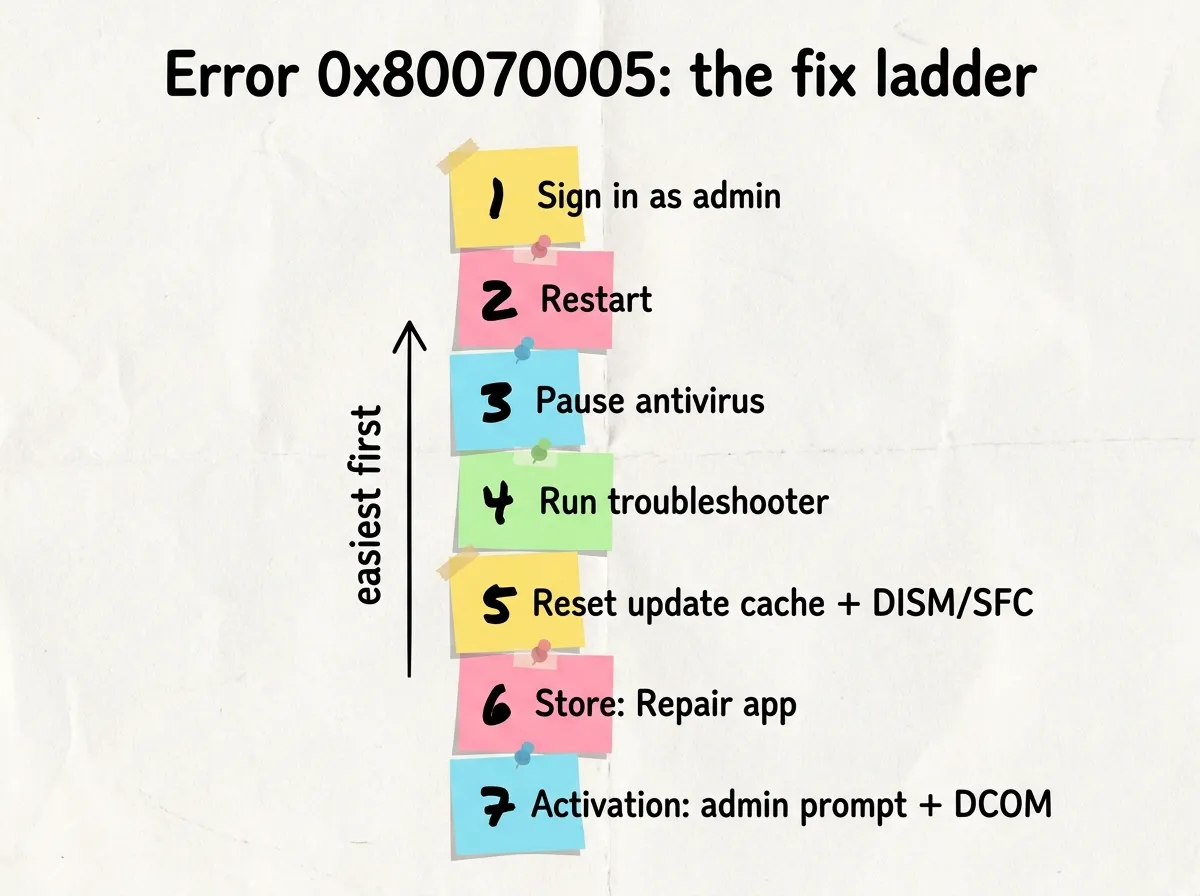
Still stuck after step 5? The general Windows Update fixes go further. If the code changes to error 0x80004005, that page has its own list.
What not to do
- Don’t take ownership of C:\Windows or give “Everyone” full control. That opens a security hole and can break later updates.
- Skip “registry cleaner” and “error fixer” downloads. They can’t tell which permission is wrong.
- Don’t leave your antivirus off after the test. Turn it back on, or switch to one of the free antivirus options that get along with Windows Update.
FAQ
Is 0x80070005 a virus?
No. It is a standard Windows code for access denied. Malware can change permissions and cause this error, so a full scan makes sense if it appears out of nowhere.
Can antivirus cause 0x80070005?
Yes. Security software that locks system files is a common cause, and step 3 is the quick solution to test it.
Will error 0x80070005 damage my files?
No. The blocked action simply didn’t happen, and your files and documents stay as they were. For other codes, see the error code library.
Did this fix it?
0 readers say this fixed it
Good. One gripe fewer on the wall.
Sorry. Tell us what you tried, or see if others have the same problem.