- Computer Gripes
- Windows
- How to Fix Windows Update Errors:…
How to Fix Windows Update Errors: 9 Fixes That Work
How to fix a Windows Update error on Windows 11 and 10: read the error code, run the troubleshooter, reset the update cache and repair files with DISM.
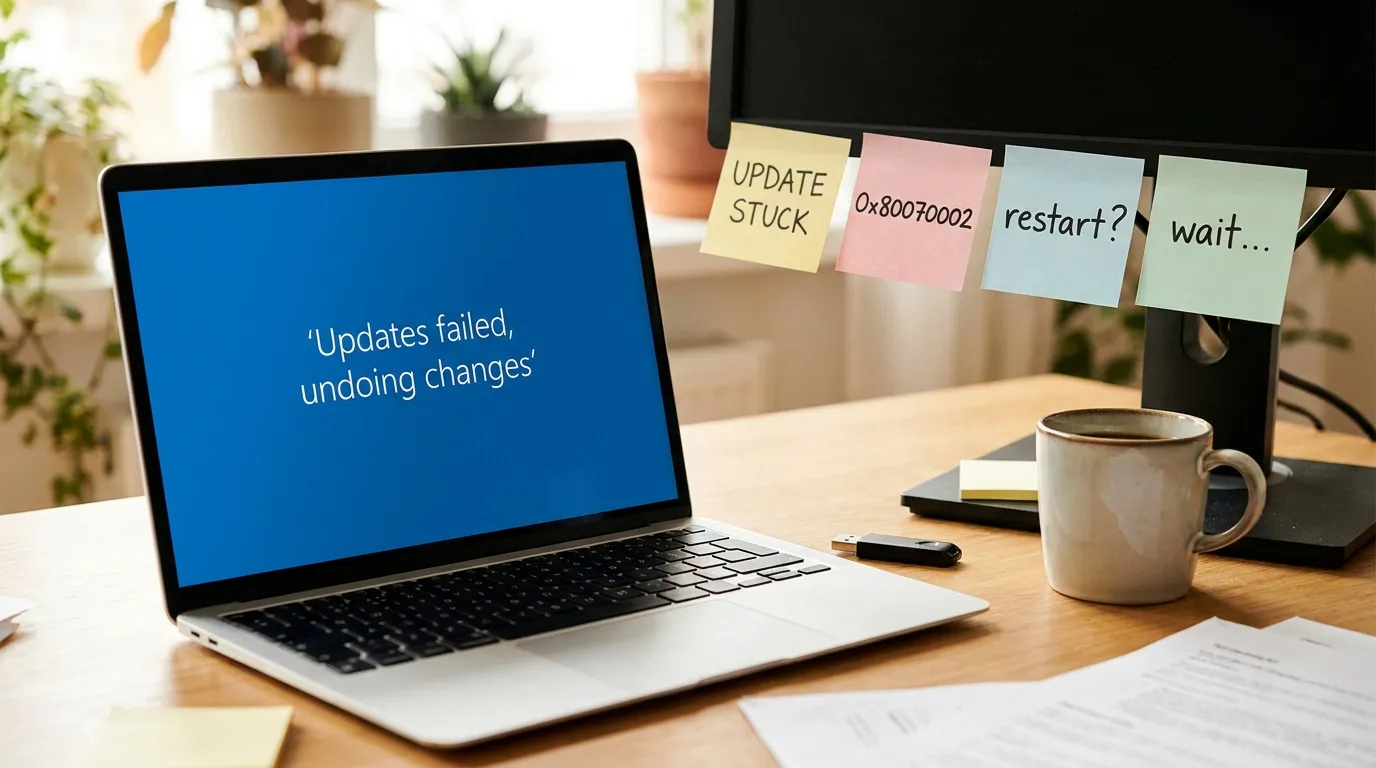
Windows Update fails for a handful of reasons, and most of them have nothing to do with the update itself. A full drive, a stalled background service, a cache full of half-downloaded files or an overprotective antivirus cause the bulk of the trouble. Knowing how to fix a Windows Update error mostly means doing things in the right order: cheap checks first, heavy repairs last. Work down the list below and stop as soon as the update installs.
First, read the error code
Open Settings > Windows Update > Update history and look at the failed entry. The code next to it often narrows the cause before you change anything.
| Error code | What it usually means | Try first |
|---|---|---|
| 0x80070002 | Update files are missing or corrupted | Step 5: reset the update cache |
| 0x80073712 | A system file the update needs is damaged | Step 6: DISM and SFC |
| 0x800f0922 | No connection to Microsoft’s servers, or the system partition is too small | Step 3: connection and VPN |
| 0x80070070 | Not enough disk space | Step 2: free up space |
| 0x8024a105 | The download stalled | Step 1, then step 5 |
| 0x800f081f | Required components could not be found | Step 6, then step 8 |
Microsoft keeps a longer list of common Windows Update error codes and their causes if yours is not here. No code at all, just a bar stuck at 0% or 100%? Start at the top.
How to fix Windows Update errors, step by step
These steps apply to Windows 11 (24H2 and 25H2) and Windows 10 as of October 2026. You need an administrator account for steps 5 to 9, and your device should have a working internet connection.
- Restart your computer properly. Open the Start menu, hold Shift while you select Shut down, wait ten seconds and start the PC. A normal restart keeps parts of the stuck session alive because of Fast Startup. Then open Windows Update and click Check for updates to run Windows Update again.
- Make sure the drive has space. Feature updates may need 20 GB or more on the system drive. Open Settings > System > Storage, select Cleanup recommendations and delete temporary files. Unplug USB drives and SD cards from your computer as well, since the installer sometimes trips over them.
- Check the connection, VPN and clock. Pause any VPN or proxy, switch from Wi-Fi to a cable if you can, and turn on Set time automatically under Time & language. A clock that is off by a few minutes can break the secure connection to the update servers.
- Run the Windows Update troubleshooter. In Windows 11 go to Settings > System > Troubleshoot > Other troubleshooters and click Run next to Windows Update. Follow the on-screen instructions; it restarts the Windows Update service and resets common settings. Let it finish, restart your computer and try again.
- Reset the Windows Update cache. The SoftwareDistribution folder stores the downloaded update files, and a corrupted file there makes every new attempt fail the same way. Type
cmdin the Start menu, select Run as administrator, and enter these commands one at a time, pressing Enter after each:net stop wuauserv,net stop bits, then rename the folder withren C:\Windows\SoftwareDistribution SoftwareDistribution.old, and start the services again withnet start bitsandnet start wuauserv. Windows builds a fresh folder on the next check. - Repair system files with DISM and SFC. In the same window, type
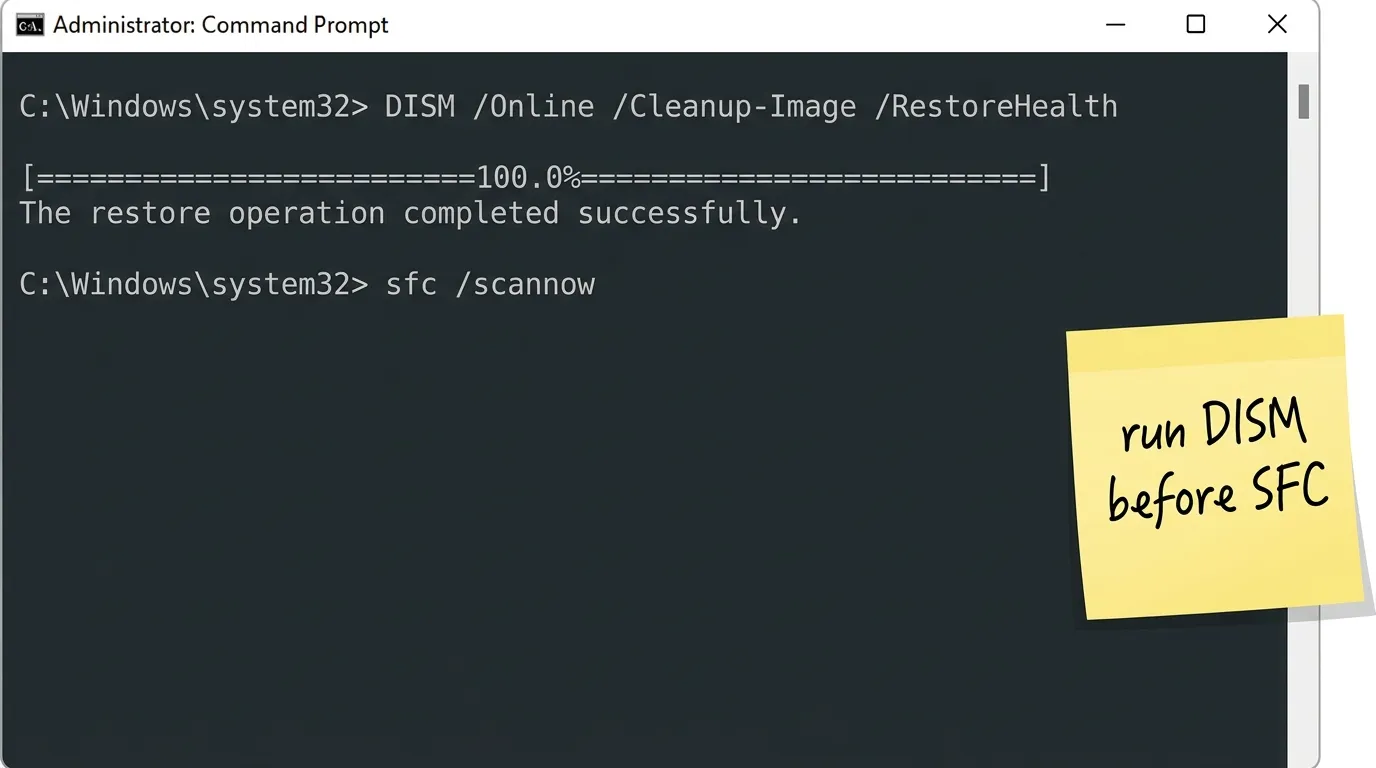
DISM /Online /Cleanup-Image /RestoreHealth, press Enter and wait until it reaches 100%. Then run the System File Checker withsfc /scannow. DISM restores the component store that updates install from, and SFC uses that store to replace damaged files. Restart your computer when both are done. - Pause third-party antivirus. Some security suites block the update service or quarantine files mid-install. Disable real-time protection for ten minutes and run the update. If that works, add an exception for Windows Update, or switch to Microsoft Defender, which ships with Windows and does not interfere with it. A preinstalled McAfee trial is a frequent offender, and removing McAfee completely beats pausing it every month.
- Download and install the update by hand. Note the KB number of the failed update, search for it in the Microsoft Update Catalog, and download the package that matches your Windows version. Double-click the file and follow the on-screen instructions. This way you get the update without the Windows Update service.
- Repair-install Windows. In Windows 11 open Settings > System > Recovery and choose Fix problems using Windows Update (called *Reinstall now* on some builds). It reinstalls the current version of Windows and keeps your apps and files. Treat it as the last step before a full reset.
Why you should check the easy things first
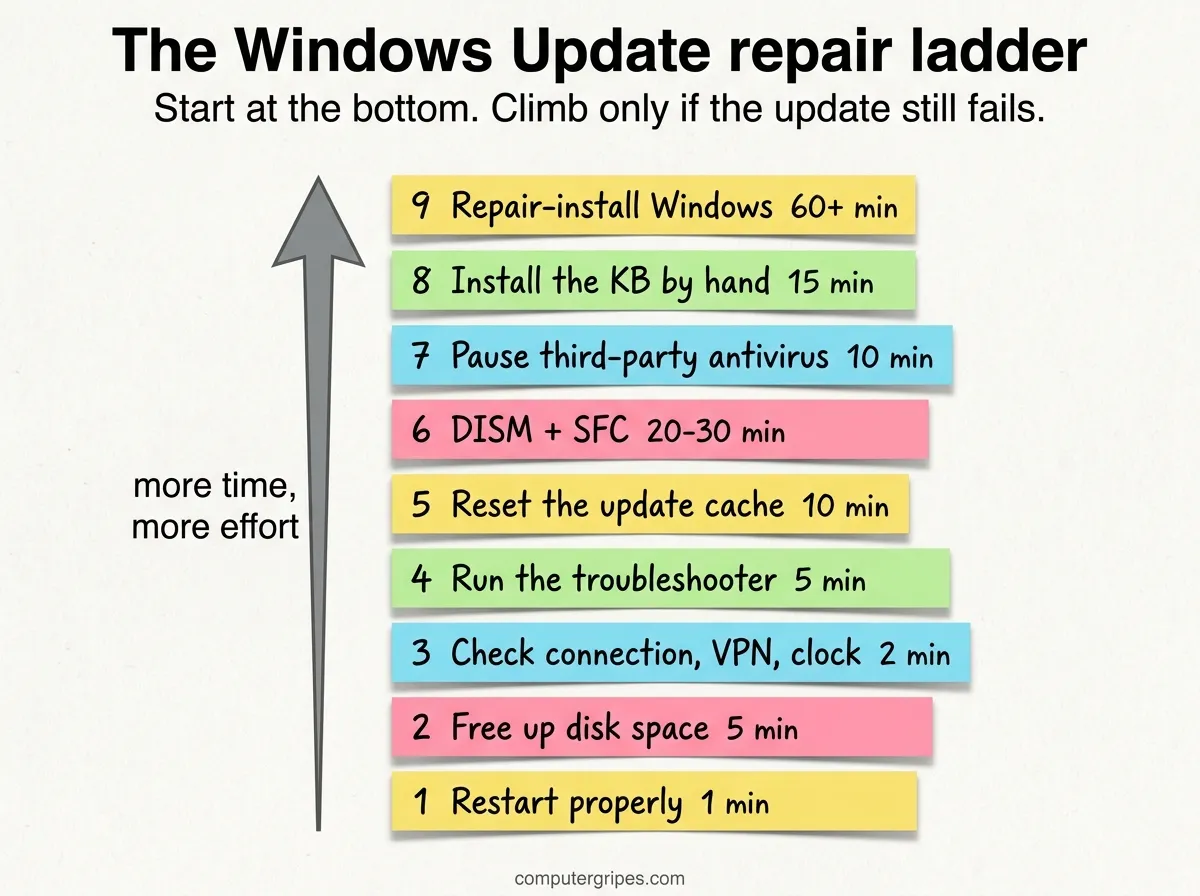
Each step down the list takes longer than the one before it. A restart takes a minute, DISM can take twenty, and a repair install an hour or more. Jumping straight to the heavy tools can cost you an afternoon on a problem that a cleared cache would have solved.
The order also follows the likely cause. Disk space and a stuck download explain most failed updates on home PCs. Corrupted system files are rarer, and a broken Windows installation is rarer still.
When the update is stuck at 0% or 100%
A bar that sits at 0% or 100% is a different case. Give it time first: large feature updates can sit at one number for 30 minutes and then jump. If nothing moves for two hours on a normal connection, treat it as stuck.
- Stuck while downloading: go to step 5 and reset the cache.
- Stuck at “Working on updates” after a restart: hold the power button for ten seconds, start again, and Windows usually rolls back on its own. Then follow the steps from step 1.
- Same update fails every night: hide it for now with Pause updates for a week, then try again with step 8. Need a longer break? We compare the ways to stop Windows Update for weeks or months.
What not to bother with
Registry cleaners and “update repair” tools from third-party sites promise one-click fixes. In practice they rarely touch the actual cause and some of them bundle adware. The built-in troubleshooter, DISM and SFC cover what those tools claim to do, and they come with Windows.
FAQ
Is it safe to delete the SoftwareDistribution folder?
Yes. It only holds downloaded update files and the update log. Windows creates a new one automatically. Renaming it, as in step 5, is even safer because you can rename it back. You lose your update history view, nothing else.
Should I run DISM or SFC first?
Run DISM first. SFC repairs files from the component store, and if that store is damaged, SFC has nothing good to repair from. DISM fixes the store, SFC then fixes the files.
Can antivirus software block Windows Update?
It can. Third-party suites with their own firewall or “update protection” are the usual culprits. Pausing them for one update attempt is the quickest test.
Why does Windows Update keep failing with the same error?
The same error on every attempt usually points to a corrupted cached file or a damaged system component. Work through step 5 and step 6 together, then restart before you try again.
How do I reset Windows Update components completely?
Step 5 is the core of it: stop the services, rename the SoftwareDistribution folder and start the services again. If the update still fails after that and after DISM and SFC, the repair install in step 9 resets the rest without touching your files.
Did this fix it?
0 readers say this fixed it
Good. One gripe fewer on the wall.
Sorry. Tell us what you tried, or see if others have the same problem.