- Computer Gripes
- Outlook Not Receiving Emails? How to…
Outlook Not Receiving Emails? How to Fix It Fast
Outlook not receiving emails? Fix it in order: check the web version, the Other tab, rules, junk, offline mode, a full mailbox and your Outlook profile.
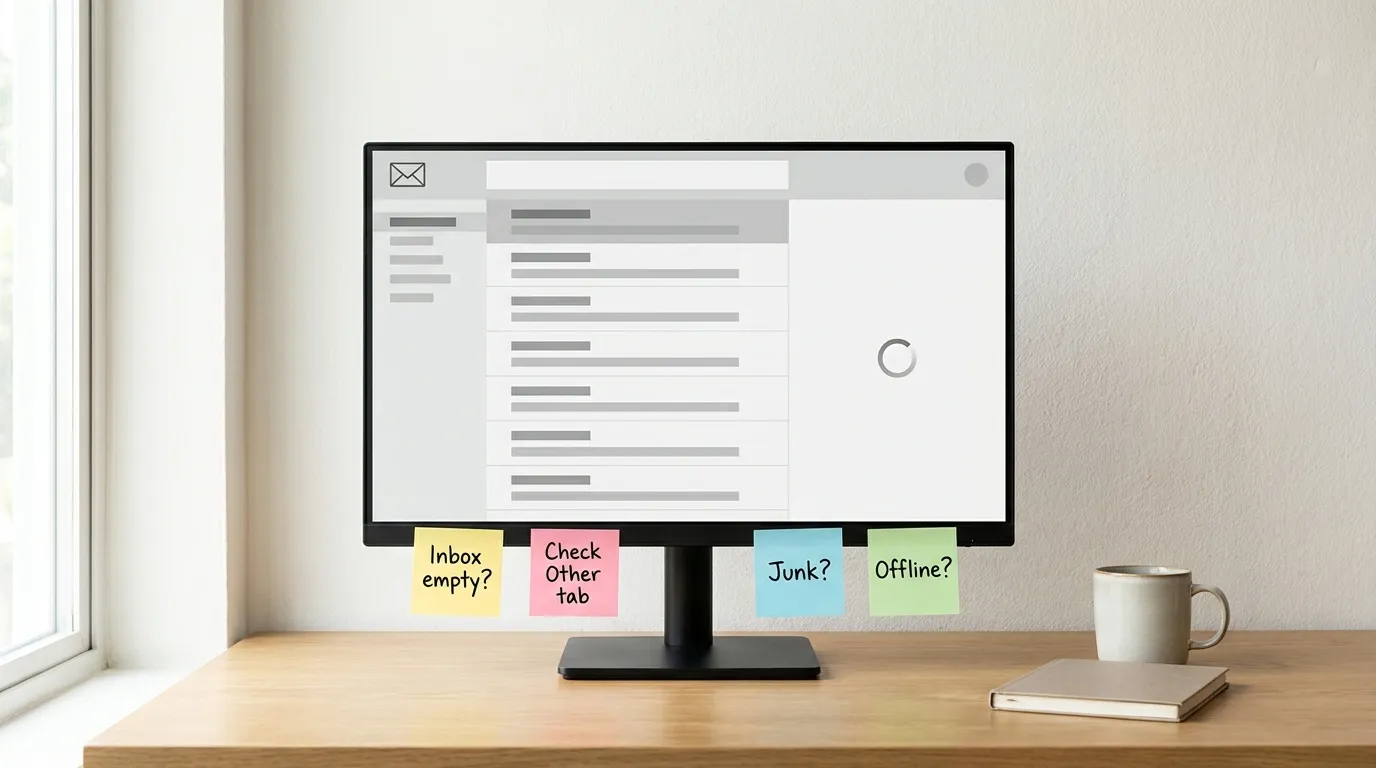
Someone says they sent it, and your inbox says otherwise. When Outlook is not receiving emails, the message is usually sitting somewhere you did not look: the Other tab, your junk folder, or a folder a rule moved it to. Less often, the emails never arrived because your Outlook mailbox is full or the app stopped syncing. The questions below go from the quickest check to the slowest. Stop as soon as the missing email shows up. (Menu names checked against Microsoft’s help pages in October 2026.)
Which Outlook are you using?
Microsoft ships three versions of Outlook, and a fix for one often does not exist in another.
| Version | What it is | Where the settings are |
|---|---|---|
| Classic Outlook | The traditional desktop app from Microsoft 365 or Office | Ribbon tabs: File, Send / Receive, View |
| New Outlook for Windows | The newer desktop app that replaced Mail and Calendar | Gear icon > Mail, General, Accounts |
| Outlook.com | Outlook on the web for Hotmail, Live and Outlook.com addresses | Gear icon > Mail, Account |
New Outlook and the web version share most settings. Classic Outlook keeps its own copy of your email in a local cache file, which is why it can fall out of sync with the server.
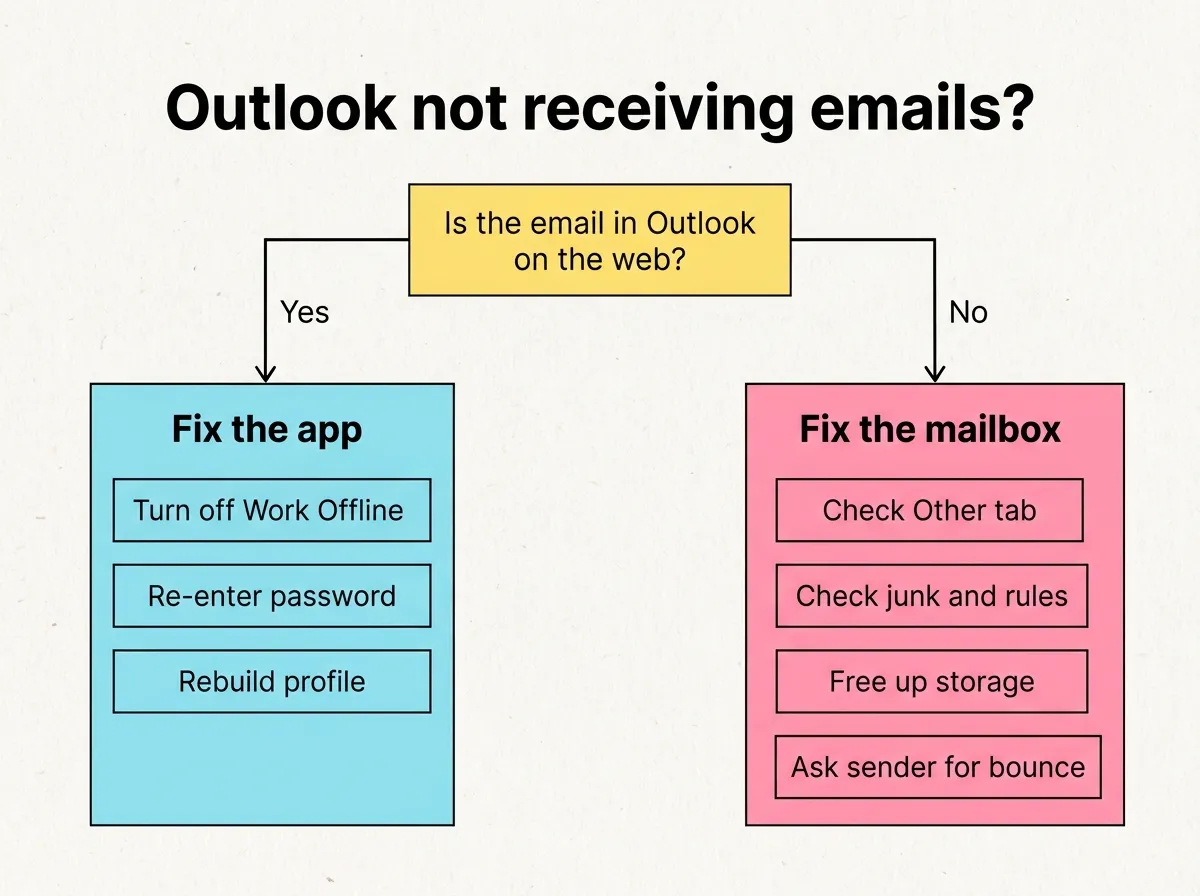
Do the emails show up in Outlook on the web?
Sign in to your Outlook email in a browser (outlook.com, or your company’s web mail) and search for the name or address. You can do this in a minute, and this one step splits the issue in half.
- The email is there: the server received it, and the desktop app is not syncing. Skip to the offline mode and profile questions below.
- The email is not there: the issue is with the mailbox itself, its filters, or the sender. Keep reading in order.
Is the email hiding in the Other tab?
Focused Inbox sorts incoming emails into two tabs, Focused and Other. Newsletters, receipts and first-time senders often land in Other, and many people never click it. Open that tab first. If you find the message there, move it to Focused and choose Always move to Focused. To turn the split off:
- Classic Outlook: View tab > Show Focused Inbox.
- New Outlook: View > View settings > Mail > Message list, then clear *Sort messages into Focused and Other*.
- Outlook.com: Settings > Mail > Layout, then choose *Don’t sort my messages*.
Did Outlook rules or the junk folder catch it?
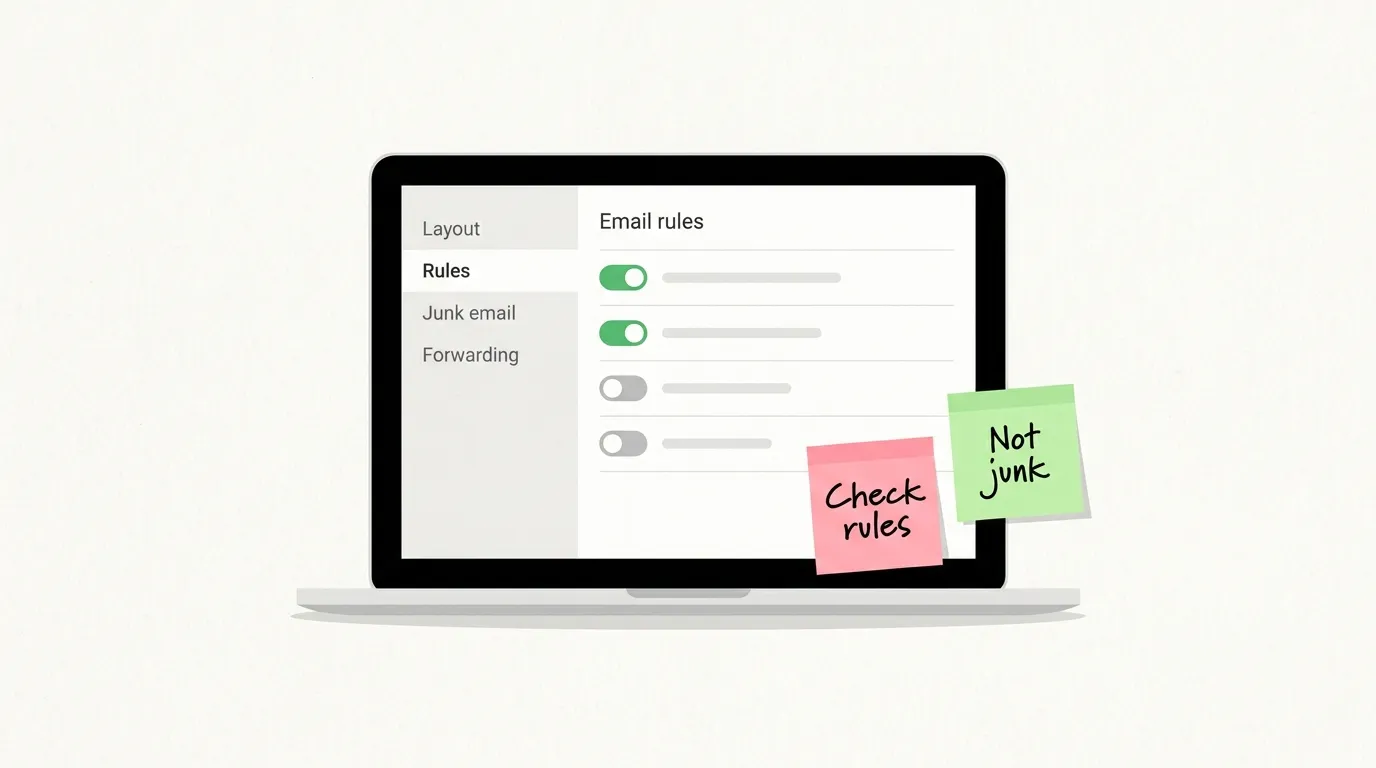
Rules run without telling you. A rule you made years ago to file invoices may catch a new sender with a similar subject and move the email to a folder you never open. In Outlook.com and new Outlook, open Settings > Mail > Rules. In classic Outlook, click File > Manage Rules & Alerts. Turn rules off one at a time and mail yourself a test message. You can delete any rule you no longer need.
Next, check your junk folder. If a real message is there, select it and choose Not junk, and Outlook stops treating that sender as spam. While you are in the settings:
- Open the blocked senders list (Mail > Junk email, or in classic Outlook Home > Junk > Junk E-mail Options) and delete any email address that should not be there.
- Add the sender to Safe senders in the same place, so the spam filter leaves that person alone.
- In Outlook.com, check Mail > Forwarding too. Forwarding without “keep a copy” moves incoming emails straight to another address.
Is Outlook offline, or is your internet connection the problem?
Classic Outlook has a Work Offline button that is easy to click by accident. When it is on, the status bar shows *Working Offline* or *Disconnected*, and no new emails come in. Open the Send / Receive tab and click the Work Offline button once so it is no longer highlighted. Then press F9 to sync all folders. If the button is not highlighted, this mode is already off.
The new app has no Work Offline mode. It syncs whenever it has a connection, and Settings > General > Offline only controls how much it stores on the PC. If nothing arrives, check your internet connection: load another website, pause the VPN, or try a phone hotspot. A strict firewall or antivirus email scanner may also block the mail server, so pause it for a quick test. If McAfee turns out to be the blocker, removing McAfee completely is the cleaner fix, and our comparison of free antivirus tools lists quieter options.
Is your Outlook mailbox out of storage?
When your mailbox is full, new email stops arriving. According to Microsoft’s page on storage limits in Outlook.com, a free account gets 15 GB of email storage, and once you go over it you cannot send or receive email. Messages sent to you in that state bounce back, so they will not appear after you clear space. They have to be sent again.
Check usage under Settings > Account > Storage. You can delete old items there by folder. Keep in mind:
- Deleted Items counts against your storage until you empty it.
- A full Microsoft cloud storage (shared with OneDrive) blocks email too, even when the mailbox is under 15 GB.
- A Microsoft 365 subscription raises the mailbox limit to 100 GB.
Is your Outlook profile or data file broken?
If the web version has the email and the desktop app does not, the connection between the two is the likely cause. A recently changed password is the most common reason: Outlook keeps trying the old password and quietly stops checking for new emails. Sign out and back in.
In the new app, open Accounts in the settings, select Manage next to the account, remove it and add it again. In classic Outlook, work through these steps:
- Click File > Account Settings > Account Settings, select the account and choose Repair if the button is there.
- Rebuild the Outlook data file. Close Outlook, find the .ost file (File > Account Settings > Data Files shows the folder) and rename it. Outlook downloads a fresh cache from the server on the next start, so this step does not lose mail stored in the cloud. For a POP account with a PST file, run the Inbox Repair Tool (SCANPST.EXE) instead, because the PST file holds the only copy of that mail.
- Create a new Outlook profile. In Control Panel open Mail > Show Profiles > Add, set up the account again and pick the new profile at startup.
If you have a Hotmail or Outlook.com address set up as IMAP or POP, remove it and add it as a Microsoft account; IMAP syncs fewer folders. And if the receiving emails issue started right after an update, install pending fixes first. Our guide on how to fix Windows Update errors covers updates that refuse to finish.
What if only one sender’s emails never arrive?
Then the issue is usually on their side or between the two servers. Ask for the bounce message (non-delivery report), which names the reason: a typo in your email address, a full mailbox or a spam rejection. Confirm they have the email address exactly right, including any alias. If many people have issues with Outlook at the same time, Microsoft posts the outage on its service status page.
Checklist before you give up
- Search for the email in Outlook on the web.
- Open the Other tab and your junk folder.
- Review Outlook rules, blocked senders and forwarding.
- Turn off Work Offline and test your internet connection.
- Check storage and empty Deleted Items.
- Re-enter your password or rebuild the profile.
- Ask the sender for the bounce message.
If every item checks out and emails still are not coming in, Microsoft support can look at the mailbox from the server side, which no solution inside the app will show you.
Did this fix it?
0 readers say this fixed it
Good. One gripe fewer on the wall.
Sorry. Tell us what you tried, or see if others have the same problem.