- Computer Gripes
- Security
- Uninstall McAfee: Remove It Completely From…
Uninstall McAfee: Remove It Completely From Windows
How to uninstall McAfee and remove McAfee from your Windows PC: use the Settings app, run the MCPR tool for leftovers, and turn Microsoft Defender back on.
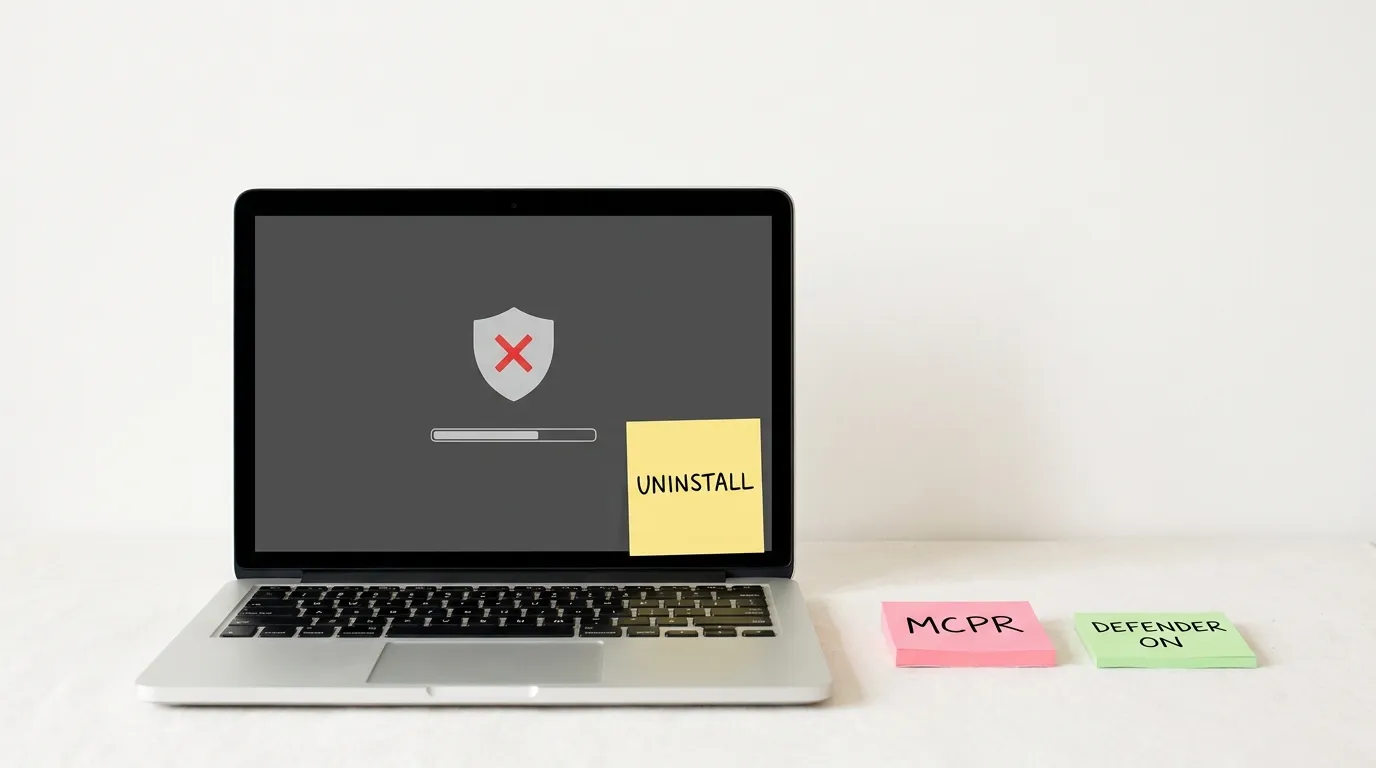
You bought a new laptop, and before you opened a single document, McAfee was already asking you to renew. If you want to uninstall McAfee, you can. Windows has its own virus protection built in, and McAfee offers a cleanup utility for whatever the normal uninstallation misses. The steps below cover why the software is there, why it sometimes refuses to leave, how to get rid of it, and the one check to do afterward.
Why McAfee is on your PC in the first place
Most people never chose McAfee. It came with the computer. PC makers often preload a trial of McAfee LiveSafe or McAfee Total Protection on new Windows laptops and desktops, and once the trial runs out, the renewal pop-ups start.
It also arrives by accident. McAfee WebAdvisor and Security Scan Plus have shipped as optional extras in other installers for years, so one “Next” click too many and you have them.
McAfee antivirus is legitimate software. You just don’t need two scanners fighting over the same files, and plenty of people would rather use the one that comes with Windows. Our comparison of Defender and the free antivirus tiers explains why that is usually enough.
Why McAfee resists removal
Security tools are built to be hard to kill, because malware tries to switch them off. That self-protection is the main reason the process can stall. Typical causes:
- Running services: McAfee loads several background services at startup. If one is busy, the uninstaller may hang or quit with an error.
- Separate products: the suite, WebAdvisor and Security Scan Plus each appear as their own entry. Remove one and the others stay.
- A damaged install: an interrupted update or an earlier failed attempt leaves pieces behind, and the regular uninstaller no longer knows what to delete.
- Missing rights: on a standard user account, Windows blocks the removal of security applications. You need an administrator account.
Step 1: Uninstall McAfee using the Settings app
Start here. In most cases this is all you need, because it runs McAfee’s own uninstaller.
- Save your work and close all open programs, including the McAfee window.
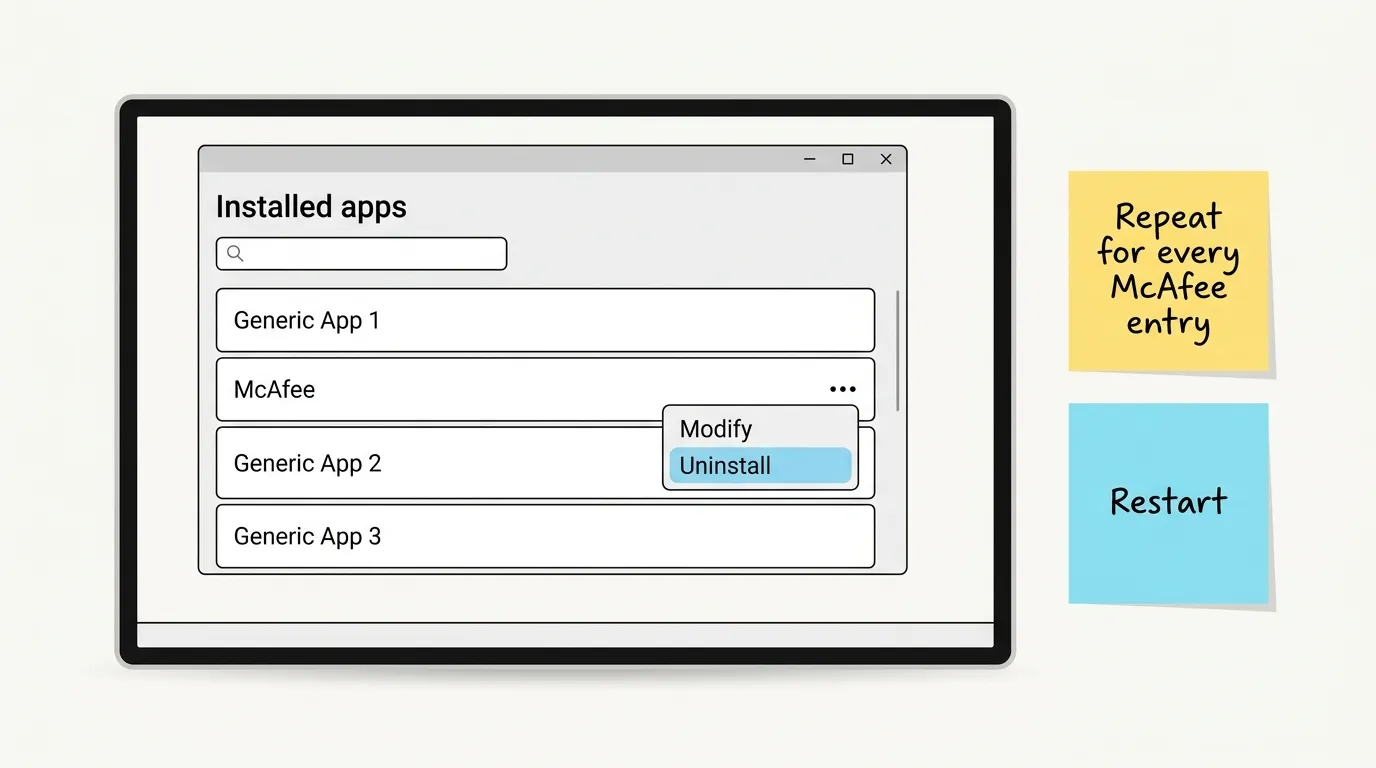
- Open the Start menu, select Settings, then Apps and Installed apps (Windows 10: Apps & features).
- Type “McAfee” in the search bar to filter the list.
- In Windows 11, click the three dots next to the McAfee product and choose Uninstall. In Windows 10, click the entry and then the button.
- Confirm the prompt, tick the option to remove all files for the program, and follow the on-screen instructions.
- Repeat for all McAfee entries, such as WebAdvisor, and restart your computer.
Prefer the Control Panel? Open it, click Programs and Features, select the McAfee entry and click Uninstall. The Control Panel launches the same McAfee uninstaller, so pick whichever menu you know.
Step 2: Run the McAfee Consumer Product Removal tool (MCPR)
If the uninstallation fails, freezes, or McAfee reappears after the restart, use the McAfee Consumer Product Removal tool, usually called MCPR. It’s McAfee’s official cleanup utility for its home products and deletes leftover files, services and registry keys.
- Download the MCPR tool from McAfee’s support site. Search their knowledge base for “MCPR” and skip third-party mirrors.
- Right-click MCPR.exe and select Run as administrator. It doesn’t need to be installed.
- Accept the license agreement and type the case-sensitive code shown on screen.
- Wait while it scans and cleans. This can take a few minutes.
- When you see CleanUp Successful, restart the PC. The job isn’t finished until you do.
If the MCPR tool reports CleanUp Unsuccessful, restart and run it once more. If it fails again, keep the log files it offers, because McAfee support will ask for them.
| Situation | What to do |
|---|---|
| Settings route worked, no errors | MCPR is optional, but a quick run catches leftovers |
| Uninstaller froze or threw an error | Restart, then run MCPR |
| WebAdvisor still in your browser | Remove it from Installed apps and delete the browser extension |
| McAfee for business (ePO-managed) | MCPR doesn’t apply; your IT team handles it |
| Still there after two MCPR runs | Contact McAfee support with the logs |
Step 3: Clean up what’s left
After the MCPR tool and a restart, the PC is usually clean. Two places are worth a glance anyway:
- Browsers: open the extensions page in Chrome, Edge or Firefox and delete any McAfee WebAdvisor extension that survived.
- Program folders: look in
C:\Program Files\McAfeeandC:\Program Files\Common Files\McAfee. An empty folder is harmless. If you delete one, stay out of the Windows folder.
Skip the registry cleaners some guides suggest. MCPR already handles the keys that matter, and a wrong deletion in the registry can break far more than a stray McAfee entry ever could.
Step 4: Make sure Windows Security and Defender are back on
While McAfee was your primary scanner, Windows kept Microsoft Defender Antivirus in disabled mode so the two wouldn’t clash. According to Microsoft Learn’s page on Defender compatibility with other security products, Defender can re-enable itself automatically once a third-party antivirus is uninstalled or stops providing real-time protection. Check it yourself rather than assume:
- Open Windows Security from the Start menu.
- Select Virus & threat protection.
- Under “Who’s protecting me?”, click Manage providers.
- Under Antivirus, you should see Microsoft Defender Antivirus is turned on.
If it’s off, open Virus & threat protection settings and switch on Real-time protection. Then select Protection updates and Check for updates. Defender gets its definitions through the Windows Update channel, so if updates are stuck on your Windows PC, sort that out first with our guide on how to fix Windows Update errors.
For a technical double-check, open PowerShell and run Get-MpComputerStatus | select AMRunningMode. “Normal” means Defender is your active scanner.
FAQ
Is it safe to uninstall McAfee?
Yes, as long as something takes over. On Windows 10 and 11 that’s Microsoft Defender, which is free and already on the PC. Confirm it’s turned on afterward.
Do I need McAfee if I have Windows Defender?
For most home users, no. Defender covers real-time protection, and two scanners at once can slow the PC and conflict. If you pay for McAfee extras such as the VPN or identity monitoring, that’s a separate call.
How do I remove McAfee WebAdvisor?
WebAdvisor is its own program. Remove “WebAdvisor by McAfee” from Installed apps, then delete the extension in each browser. MCPR doesn’t always catch it.
Will removing McAfee cancel my subscription?
No. Deleting the software doesn’t stop billing. Turn off auto-renewal in your McAfee account online.
Short version
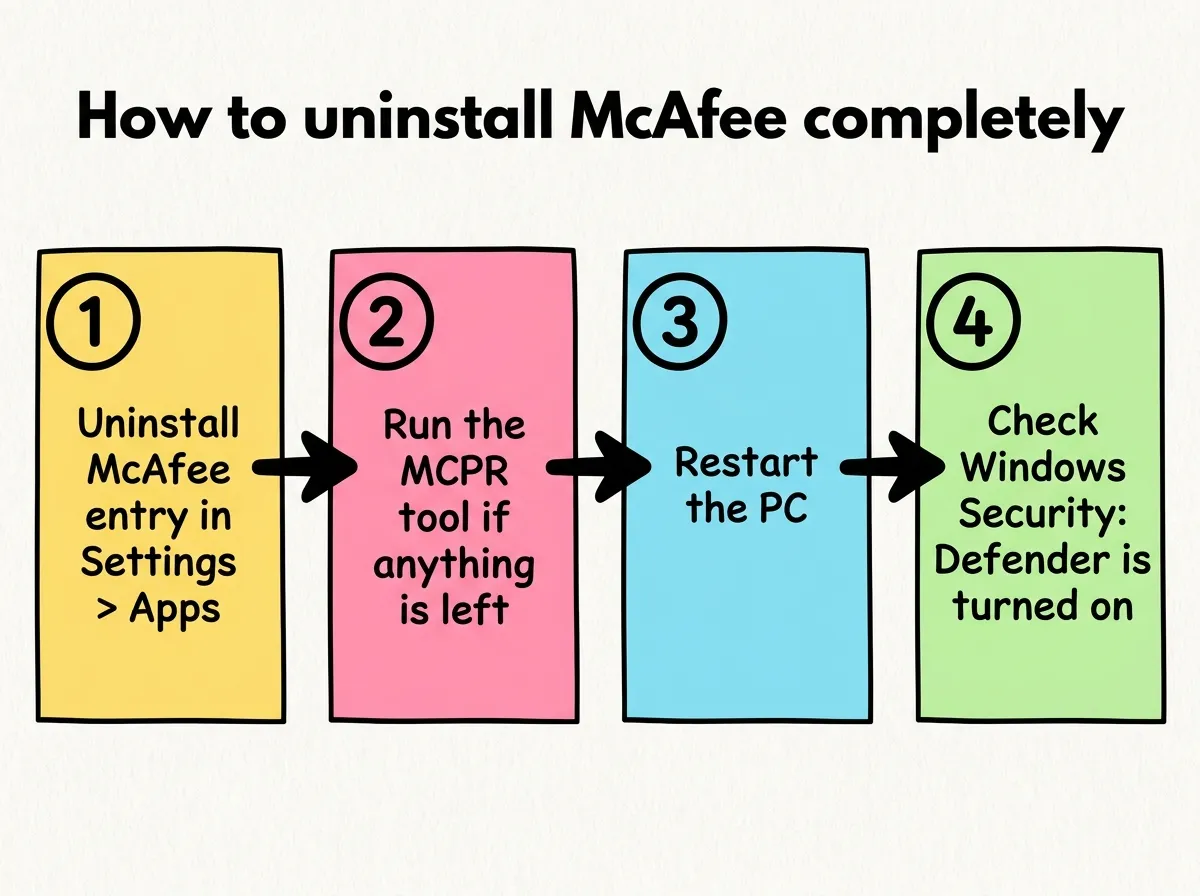
Uninstall every McAfee entry through the Settings app, restart, and run MCPR if anything is left or the first attempt failed. Then open Windows Security and confirm that Defender is on, since a PC with no active virus protection is worse off than one with McAfee still installed.
Did this fix it?
0 readers say this fixed it
Good. One gripe fewer on the wall.
Sorry. Tell us what you tried, or see if others have the same problem.