- Computer Gripes
- Dell Laptop Problems: Common Fixes and…
Dell Laptop Problems: Common Fixes and Honest Gripes
Dell laptop problems sorted by symptom: no power, black screen, overheating, battery not charging. See what to fix first and what still bugs Dell owners.
Fixes on this wall
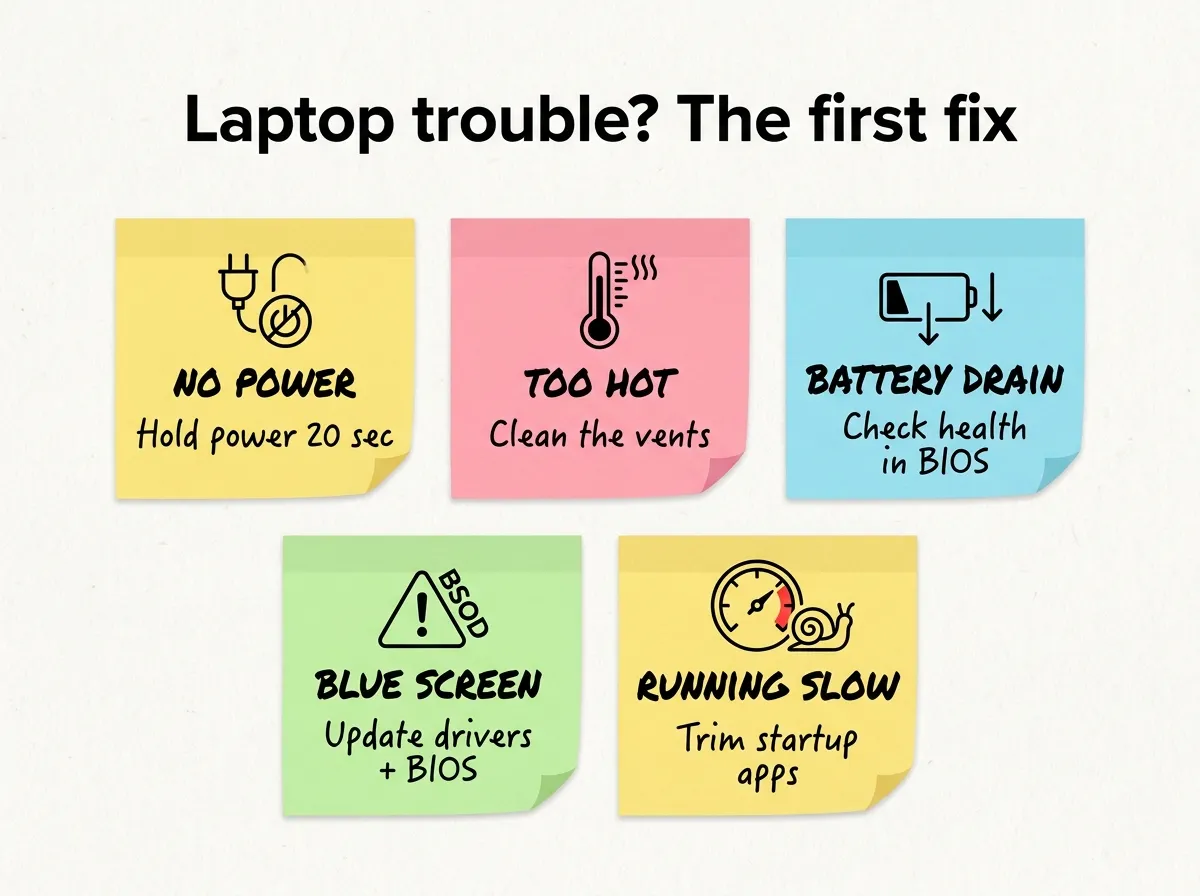
Most Dell laptop problems fall into a handful of groups: no power, too much heat, a battery that drains or stops charging, a laptop crashing to a blue screen, or a machine that feels slow. Other brands have the same list. Dell differs in the tools it gives you for fixing these, and in a support reputation that still carries scars from the mid-2000s.
This page is the wall for all things Dell. The fix guides for this topic are pinned above. Below you can see these problems with a first move for each, some gripes we think are fair today, and a short look back at the years people called “Dell Hell.”
Common problems at a glance
Find your symptom and try the first move. If it doesn’t help, go deeper. The table should help you identify possible causes and what to fix first.
| Symptom | Possible causes | First move |
|---|---|---|
| No power, no lights | Leftover charge, dead adapter, flat cells | Unplug everything, hold power 15 to 20 seconds |
| Black screen, power light on | Display, RAM, stuck sleep state | Try an external monitor and a hard reset |
| Overheating, fan at full speed | Dust in the vents, heavy background load | Clean the vents, check Task Manager |
| Battery draining fast or not charging | Worn cells, weak adapter | Check health in the BIOS |
| Blue screen or random restarts | Driver, BIOS, failing RAM or SSD | Update drivers and BIOS, run diagnostics |
| Stuck boot loop, hung startup screen | Failed update, corrupt files, drive error | Automatic Repair and diagnostics |
| Running slow | Too many startup apps, trialware, full disk | Trim what starts with Windows |
| Keyboard not working, touchpad dead | Driver, touchpad toggled off, hardware | Check the toggle, reinstall the driver |
Your Dell laptop won’t turn on or shows a black screen?
No lights at all usually means leftover charge in the circuits or a dead charger. A power light plus a black screen points to the display, the memory or a sleep state the device can’t wake from. Our symptom-by-symptom guide for a Dell laptop that won’t power up covers the power drain, adapter checks, LED blink codes and BIOS recovery.
How do you run Dell’s own diagnostics?
Before you reinstall Windows or order parts, let the hardware test itself. Every Dell has a preboot diagnostic built in, and it keeps working when Windows doesn’t.
- Plug in the AC adapter and power on.
- Tap F12 repeatedly at the Dell logo until the One Time Boot Menu appears.
- Select Diagnostics and let the quick test run. Run the longer test if it offers one.
- If a component fails, write down the error code, the validation code and your service tag.
Dell documents this in its preboot diagnostics guide, including where to look up error codes. Support will ask for exactly these numbers, so having them ready saves a long call.
Why is my Dell overheating?
A hot machine whose fan never calms down usually has two possible causes. Either dust has packed the heatsink, or something in Windows keeps the processor busy.
- Open Task Manager (
Ctrl+Shift+Esc) and sort by CPU. A stuck update or indexing job can keep the fan screaming for an hour. - Keep it off beds and blankets. Blow out the vents in short bursts of compressed air while it’s shut down.
- Update the BIOS. Dell often tunes fan curves and power behavior in BIOS updates.
- Check the thermal mode. Many models offer modes like Quiet, Cool or Ultra Performance in Dell Optimizer, Dell Power Manager or the BIOS.
If your Dell laptop still shuts itself off under load after cleaning, the thermal paste or the fan may be worn out, and no setting will fix that.
Battery draining fast or not charging
Cells wear out. A two- or three-year-old laptop battery holding a fraction of its original charge is normal wear. The BIOS or SupportAssist shows its health, so check there before you blame Windows.
“Plugged in, not charging” messages often point to the adapter. Use the original Dell charger or one rated for the same wattage. Many models warn you at power-on when an adapter can’t supply enough watts.
A swollen pack that lifts the touchpad or bends the case is a safety problem. Stop using the laptop, unplug it, and get the pack replaced.
Blue screen, boot loop and Windows Update trouble
Is your Dell laptop crashing or restarting at random? Blue screens are often driver or firmware issues rather than broken hardware. Update the BIOS, chipset and graphics drivers through SupportAssist or the Dell support site for your service tag. If crashes or a boot loop started right after a Windows update, our guide to fixing Windows Update errors walks through the usual solutions.
If the diagnostics flag the memory or the SSD, stop troubleshooting software. Back up your files and contact Dell or a repair shop.
Running slow from day one?
A new consumer model often feels slower than it should because of what ships on it. Dell’s own utilities, antivirus trials and promo software all want to start with Windows, and some of these slow your Dell laptop down more than others.
- Open Settings, then Apps, then Startup, and turn off anything you don’t need.
- Remove trial software you won’t pay for. If your laptop shipped with a McAfee trial, here’s how to remove McAfee cleanly so it doesn’t fight with Microsoft Defender.
- Keep SupportAssist if you use it for driver and BIOS updates, but keep it updated as well. Dell has patched security holes in it more than once, including in 2019.

Keyboard not working or touchpad dead
Check the touchpad toggle first (often a function key or a setting under Bluetooth & devices). If the touchpad is still not working, reinstall the driver from the Dell support site. If keys fail in the BIOS too, the keyboard itself is the problem, and these fixes won’t help.
Is Dell support still bad?
It’s better than it was in the 2000s. A few complaints still come up again and again.
- Basic warranty, Premium Support and onsite service lead to very different experiences, so know which one you bought before you call.
- Nothing happens without your service tag. It’s on the bottom label and in the BIOS.
- Latitude and Precision business models usually get longer driver support and better parts availability than budget Inspiron models.
- On chat and phone, expect to repeat the basics (restart, reinstall the driver) before an escalation. Running the diagnostics first and having the codes ready skips a lot of it.
If you’re shopping for a replacement and repairability matters, check whether a model has replaceable RAM and SSD before you buy. Many thin laptops from every brand now solder both.
Back then: the Dell Hell years
In the early and mid-2000s, Dell was one of the biggest PC sellers in the US, and also one of the most griped-about. The complaints were mostly about support: long hold times, transfers between departments, and warranties that seemed to cover less than buyers expected. Machines shipped with outdated service packs and plenty of trial software, and some Inspiron models had well-known defects.
In 2005 a widely read blog post made the label “Dell Hell” famous, and it stuck. In August 2006 Dell recalled about 4.1 million Sony-made notebook batteries worldwide over fire risk, one of the largest electronics recalls in US history. In 2007 the New York attorney general sued Dell over its warranty and support practices.
Dell has spent years since then rebuilding its support. Whether it worked depends on who you ask, and on which warranty they bought.
What are the most common Dell laptop problems?
Power issues, overheating, battery wear, blue screens and slow performance. You can fix them in many cases with drivers, BIOS updates or a hard reset, and the solutions above cover each one. Need a capture of an error to send to support? Here’s how to take a screenshot on a Dell laptop.