- Computer Gripes
- Hardware
- How to Screenshot on Dell Laptop:…
How to Screenshot on Dell Laptop: 6 Ways That Work
How to screenshot on a Dell laptop: 6 shortcuts including PrtScn, the Snipping Tool and Fn combos, where your files are saved, and fixes when nothing happens.
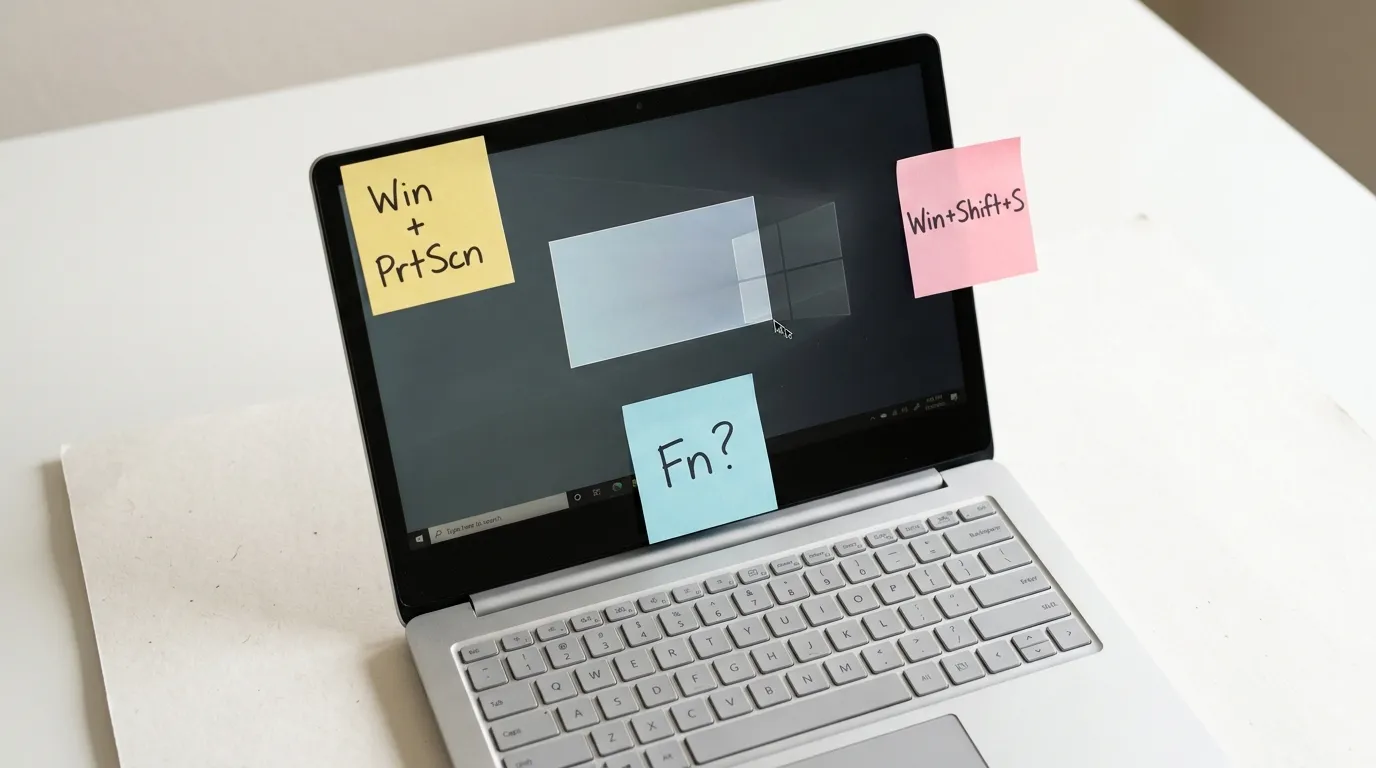
Dell doesn’t ship its own screenshot app. Every Dell laptop runs Windows, so learning how to screenshot on a Dell laptop means learning the Windows shortcuts, plus one Dell quirk: the Print Screen key often hides on a function key. Below are six methods and a fix list for when the key does nothing. The steps apply to Windows 11 (24H2 and 25H2) and Windows 10 as of October 2026.
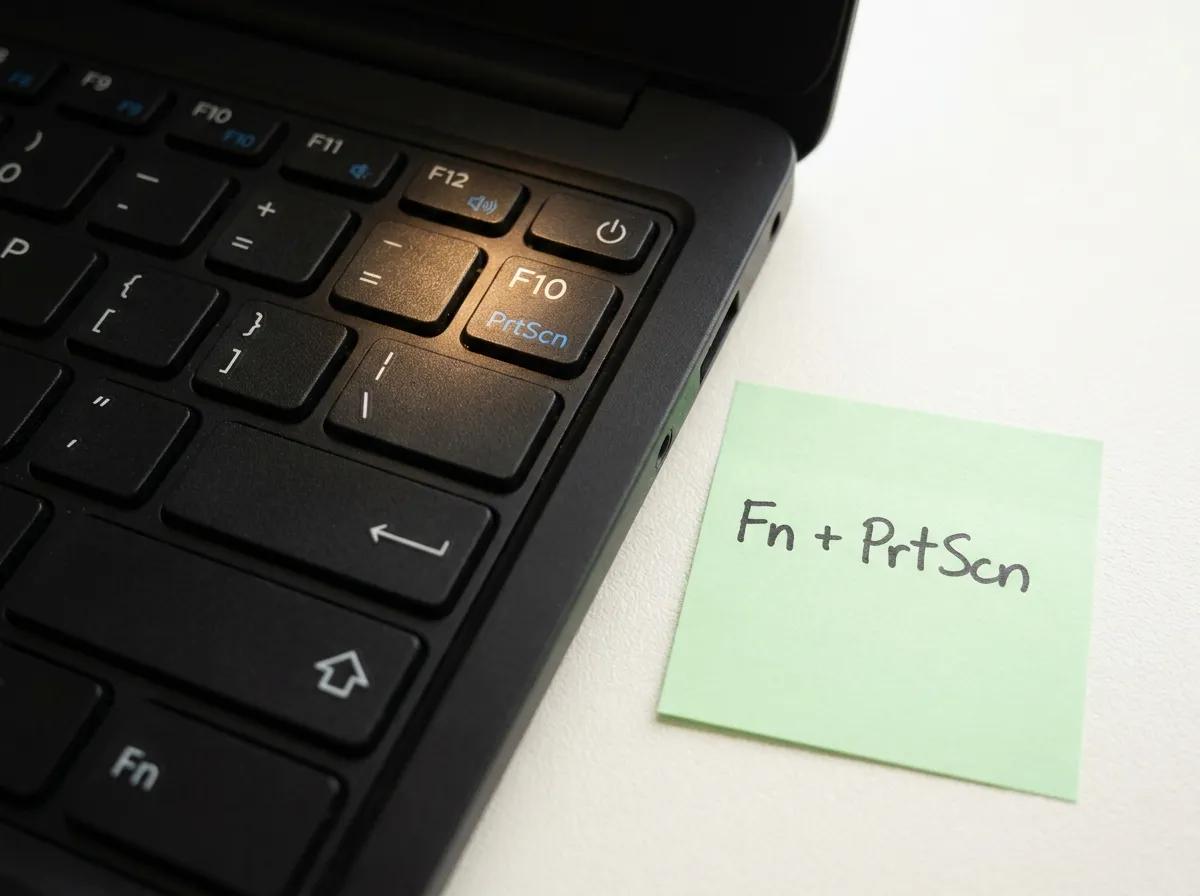
First, find the key. Dell labels it PrtScn, PrtSc, PrtScr or Print Screen, depending on the model. On most laptops it sits in the top row near the right end, often shared with F10, F12 or Insert.
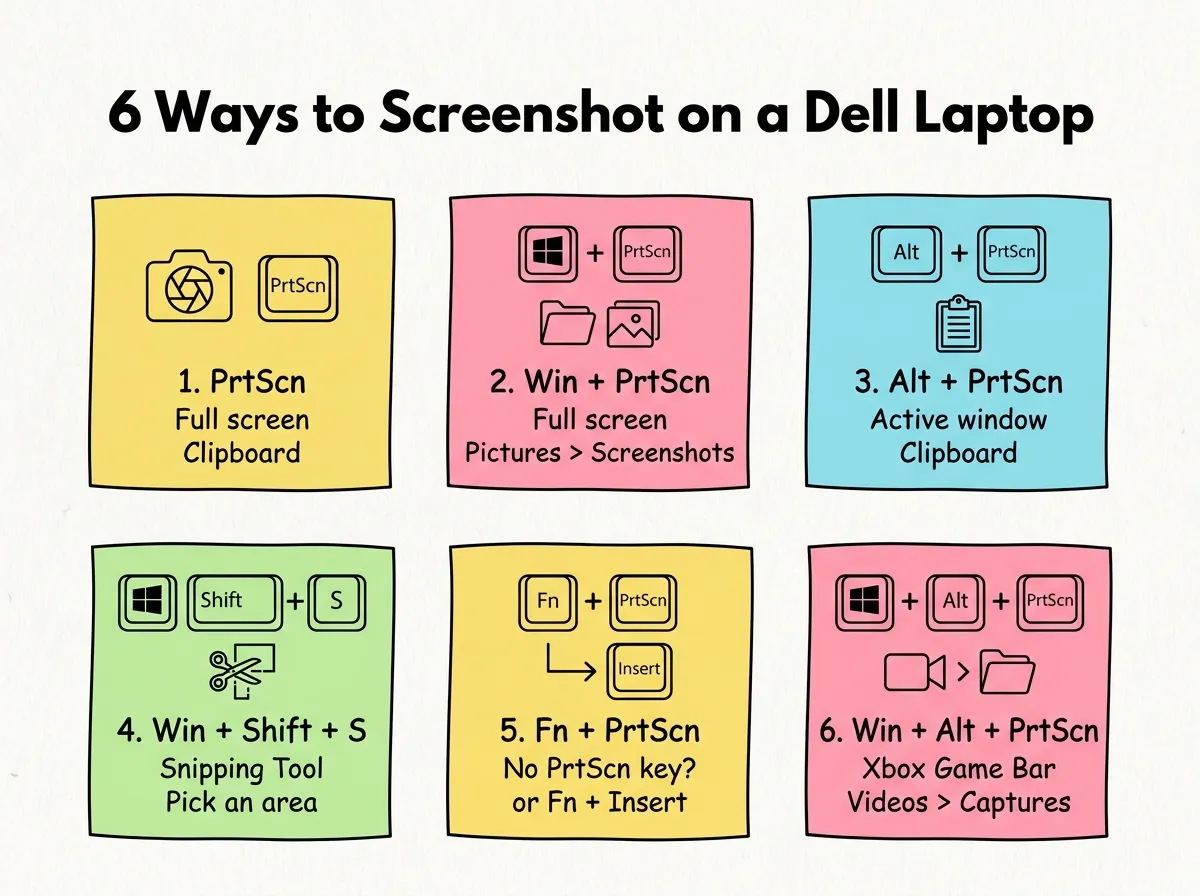
1. PrtScn: capture the entire screen
Press PrtScn once. What happens next depends on your version:
- Windows 10: the entire screen is copied to the clipboard. Nothing is saved, so paste it with
Ctrl + Vinto Paint, Word, an email or a chat. - Windows 11: current builds open the Snipping Tool bar by default, and you select the area, a window or the full screen first. If that setting is off, the key copies the whole desktop to the clipboard instead.
2. Windows + PrtScn: save a screenshot as a file
This is the shortcut most people want. Press the Windows key + PrtScn and the screen dims for a moment. That flash means the screenshot was saved automatically as a PNG file in the Pictures > Screenshots folder, so there is nothing to paste.
On a Dell 2-in-1 used as a tablet, the equivalent is Windows + Volume Down.
3. Alt + PrtScn: capture only the active window
Press Alt + PrtScn to copy just the window you’re working in, without the taskbar or other apps. Click the window first so it’s the active one. The image goes to the clipboard only, so paste it before you copy anything else.
4. Windows key + Shift + S: the Snipping Tool
Press the Windows key + Shift + S to open the Snipping Tool overlay on Windows 11 (on Windows 10 the same shortcut opens Snip & Sketch, which works much the same way). The screen darkens and a small bar appears at the top. Select the mode you want:
- Rectangle: drag around the area you want to capture.
- Window: click any window to snip it.
- Full screen: captures the entire screen.
- Freeform: draw any shape.
On Windows 11 the snip is copied to the clipboard and also saved automatically in your Screenshots folder. Click the notification to open the snip, then crop, highlight or mark it up. On Windows 10 the snip only lands on the clipboard; click the notification to save it. Microsoft’s page on using Snipping Tool to capture screenshots lists the remaining shortcuts, including Windows + Shift + R for short screen recordings.
5. Fn combos on Dell keyboards without a PrtScn key
Many compact Dell keyboards have no separate Print Screen key. The function is printed as a secondary label on another key, and you reach it with Fn:
- Fn + PrtScn when Print Screen shares a key with F10, F12 or another F-key.
- Fn + Insert on some laptops and keyboards with no Print Screen label at all.
- Fn + Windows + PrtScn to save a file when the key sits on the function layer.
- Fn + Alt + PrtScn for the active window on the same keyboards.
Dell’s support article on using the Print Screen key mentions Fn + Insert and Fn + F10 as common variations and notes that a touch-style function row may need that layer turned on first. Or skip the Fn juggling: the Windows key + Shift + S works on every Dell keyboard.
6. Xbox Game Bar: Windows + Alt + PrtScn
The Xbox Game Bar is built into Windows 10 and 11. Press Windows + Alt + PrtScn to save a screenshot of the active app or game. You can also open the Game Bar with Windows + G and click the camera icon in the Capture widget.
These files skip Pictures. They are saved as PNG files in Videos > Captures, next to any clips you record. Use this method for full-screen games and video players, where the other shortcuts sometimes produce a black image.
Comparison: which Dell screenshot method to use
| Method | Keys | What it captures | Where it goes |
|---|---|---|---|
| Print Screen | PrtScn | Entire screen (Windows 11: Snipping Tool bar) | Clipboard |
| Save to file | Windows + PrtScn | Entire screen | Pictures > Screenshots |
| Active window | Alt + PrtScn | Current window | Clipboard |
| Snipping Tool | Windows + Shift + S | Area, window, full screen or freeform | Clipboard; Windows 11 also saves a file |
| No PrtScn key | Fn + PrtScn or Fn + Insert | Same as the matching shortcut | Same as the matching shortcut |
| Xbox Game Bar | Windows + Alt + PrtScn | Active app or game | Videos > Captures |
Where screenshots are saved on a Dell laptop
Shortcuts that save a file use the Pictures > Screenshots folder, the Game Bar uses Videos > Captures, and the rest only use the clipboard. To get there fast, press Windows + E for File Explorer and click Pictures.
Two things can move this folder. If OneDrive backs up your Pictures, the files end up under OneDrive > Pictures > Screenshots. And if OneDrive’s own “save screenshots I capture to OneDrive” option is on, it can take over the key press. Lost a capture on the clipboard? Press Windows + V to open clipboard history (turn it on there the first time) and pick it from the list.
PrtScn does nothing? Fixes to try
When the Print Screen key on a Dell seems dead, the cause is usually a setting, and the hardware is fine. (A laptop that shows no sign of life at all is a different problem: see what to do when a Dell laptop won’t turn on.) Work through these in order:
- Add Fn. Press Fn + PrtScn. If that works, the key is on the function layer. Many Dell laptops toggle Fn Lock with
Fn + Esc, which swaps the top row between media keys and F-keys. - Check the Windows 11 toggle. Open Settings > Accessibility > Keyboard (newer builds: Settings > Bluetooth & devices > Keyboard) and find Use the Print screen key to open screen capture, called Use the Print screen key to open Snipping Tool on newer builds. On gives you the Snipping Tool, off gives you the classic clipboard copy.
- Close other screenshot apps. OneDrive, Dropbox, Greenshot and ShareX can claim the key. Quit them from the system tray.
- Repair the Snipping Tool. Go to Settings > Apps > Installed apps, open the menu next to Snipping Tool, choose Advanced options and click Repair, then Reset if needed.
- Restart and update. Install pending updates and keyboard drivers through Dell SupportAssist. If Windows Update is the part refusing to cooperate, our guide on how to fix Windows Update errors covers that.
- Use the fallback. Windows + Shift + S doesn’t depend on the PrtScn key, so it works while you sort out the rest.
FAQ
What is the shortcut key for a screenshot on a Dell laptop?
Windows + PrtScn saves the entire screen as a file. Windows + Shift + S lets you select an area using the Snipping Tool. Both work on any Dell laptop running Windows 10 or 11.
How do I screenshot on a Dell laptop without a Print Screen button?
Use Fn + Insert or Fn plus the F-key that carries the PrtScn label. Or skip the key and use Windows + Shift + S, or Windows + G for the Game Bar.
Did this fix it?
0 readers say this fixed it
Good. One gripe fewer on the wall.
Sorry. Tell us what you tried, or see if others have the same problem.