- Computer Gripes
- Browsers
- Firefox Not Loading Pages? 6 Myths…
Firefox Not Loading Pages? 6 Myths and the Real Fixes
Firefox not loading pages while Chrome works fine? Skip the reinstall. Check DNS over HTTPS, proxy settings, add-ons, cache and antivirus HTTPS scanning.
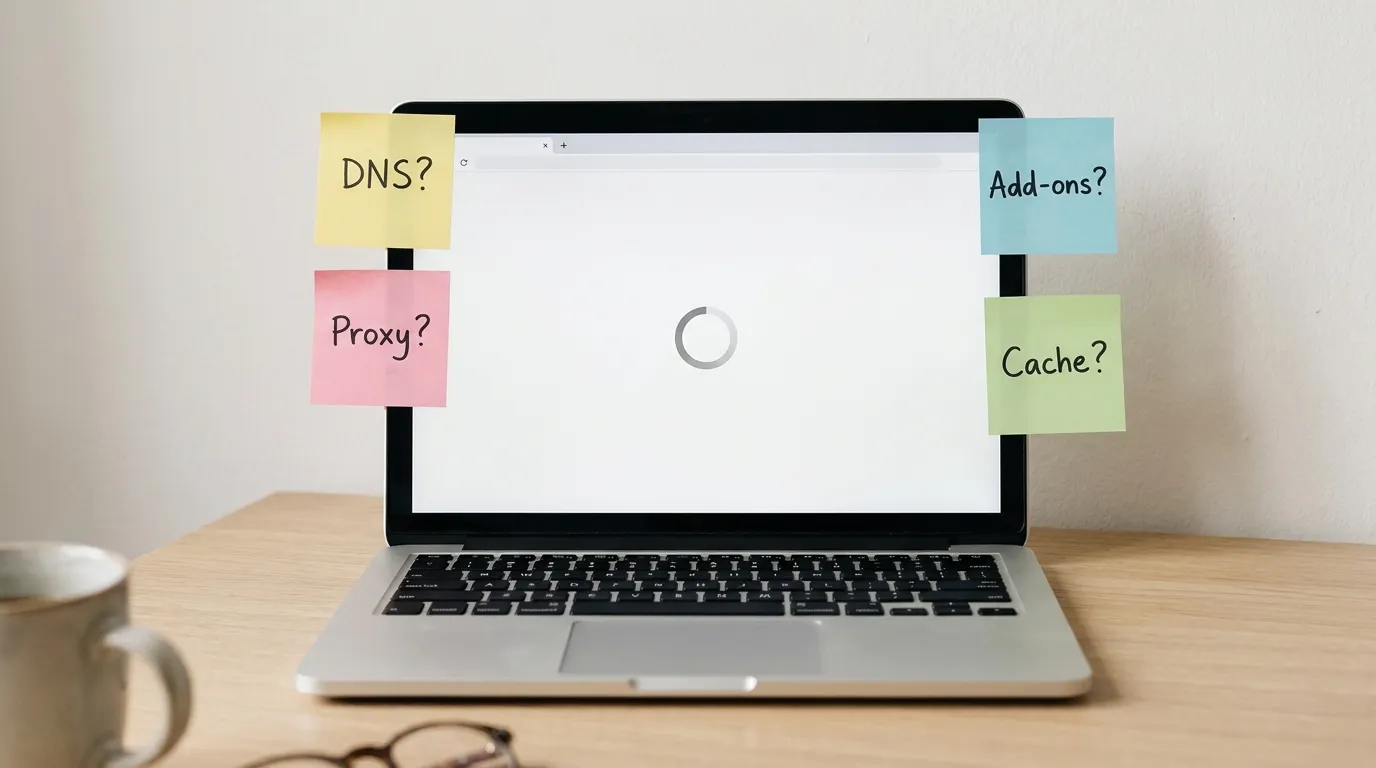
Chrome opens the site in a second. Firefox spins, then shows “Hmm. We’re having trouble finding that site” or “The connection has timed out.” When you have Firefox not loading pages while every other browser on the same computer works, the cause almost always sits inside Firefox or right next to it: a DNS setting, a proxy, an add-on, a damaged profile, stale cache or a security suite reading your HTTPS traffic.
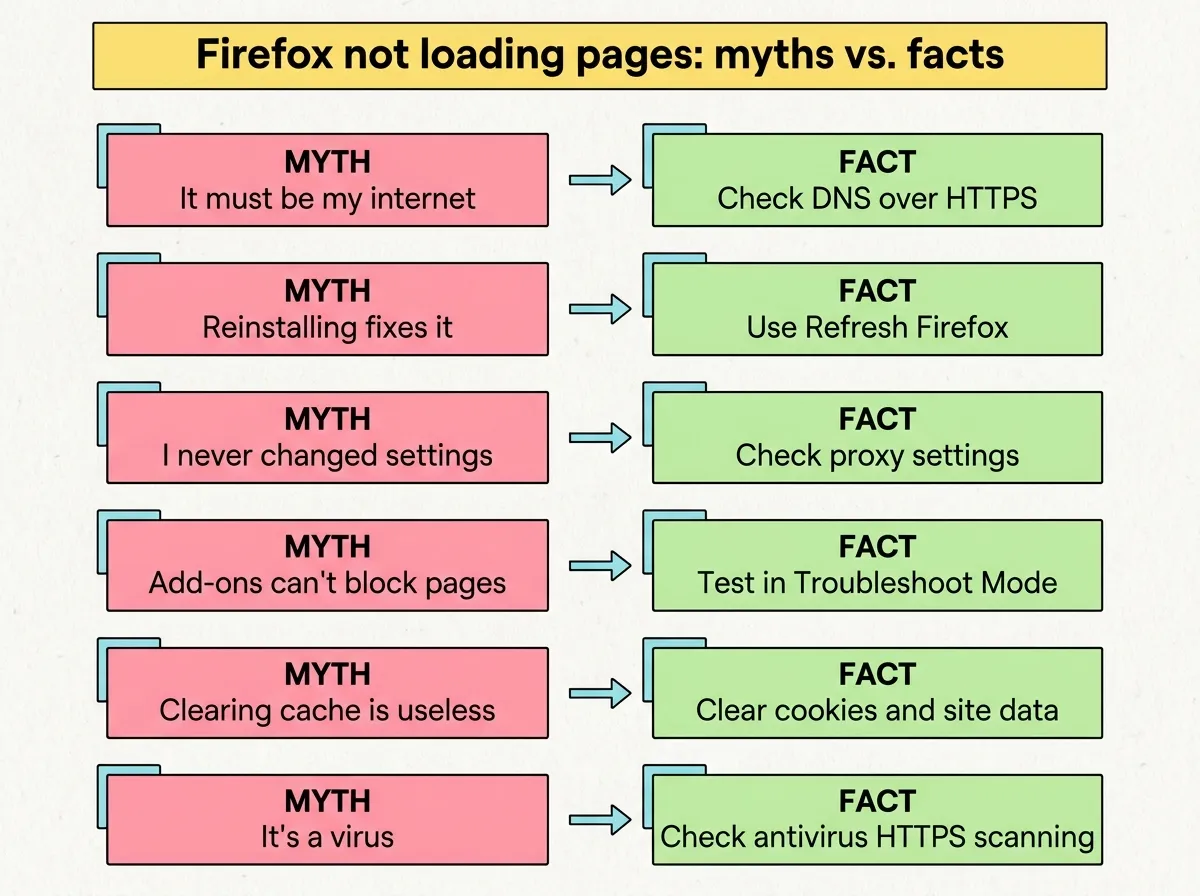
The usual advice skips all that and jumps to a reinstall or a virus scan. Below are six common myths about Firefox not loading pages, each followed by the setting that is usually behind the issue. The menu paths match current Firefox versions on Windows, Mac and Linux as of October 2026.
Firefox not loading pages? Start with a 30-second browser test
Before you change anything:
- Open the same page in Edge, Chrome or Safari. If it fails in other browsers too, the problem is your network, the router, a stray entry in the Windows hosts file or the website itself.
- Open a Private Window in Firefox with
Ctrl+Shift+P(Cmd+Shift+Pon a Mac). Private windows skip your cookies, and most extensions don’t run there. If the page loads, jump to the sections on add-ons and cache. - Read the error page. “Server not found” points to DNS. “The proxy server is refusing connections” points to proxy settings. A “Warning: Potential Security Risk Ahead” page with the code
SEC_ERROR_UNKNOWN_ISSUERorMOZILLA_PKIX_ERROR_MITM_DETECTEDpoints to antivirus. - Check File > Work Offline. Press
Altto show the menu bar on Windows. If Work Offline has a check mark, click it to turn it off.
Myth 1: “It must be my internet”
If Chrome and Edge load the same website without trouble, your internet connection works, and so do the router and your ISP. What differs is how Firefox looks up the address.
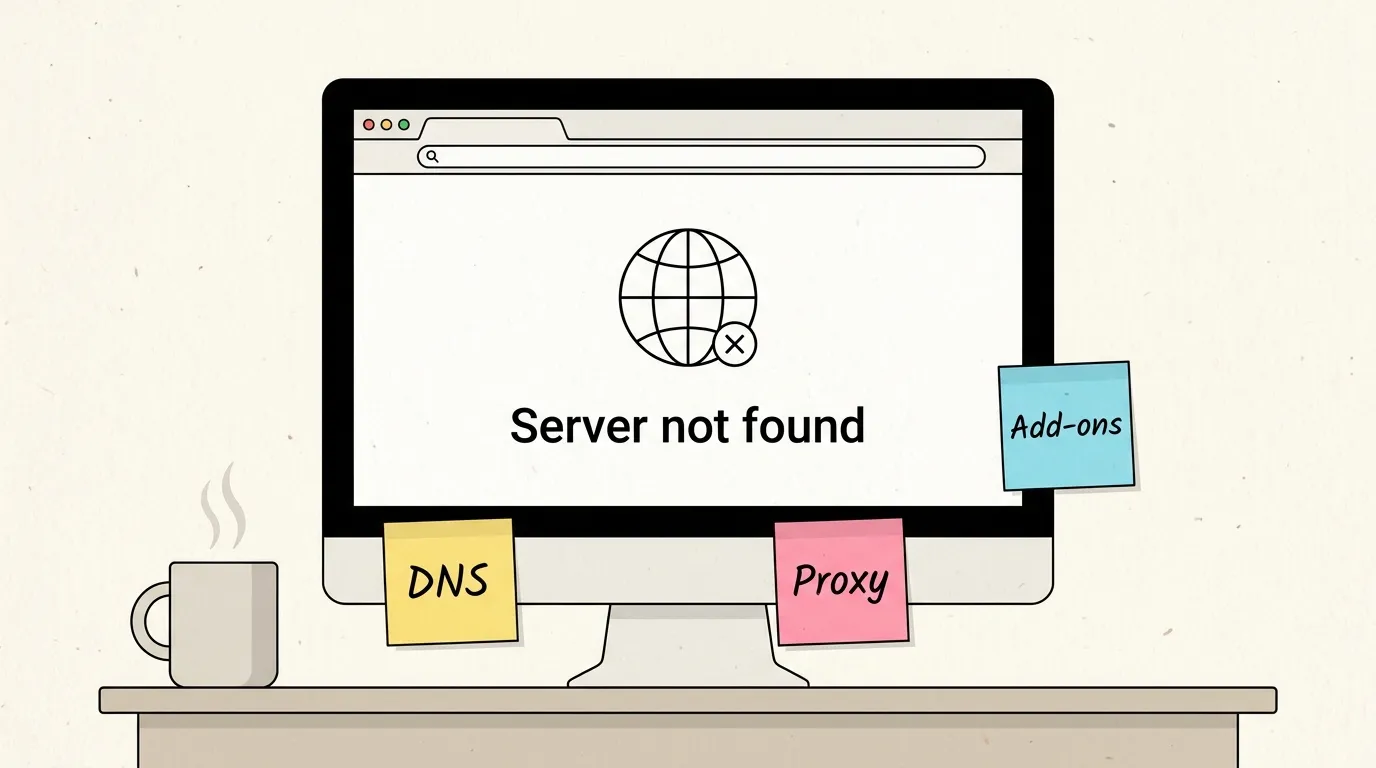
Firefox can use DNS over HTTPS (DoH), which sends name lookups to a resolver such as Cloudflare or NextDNS instead of the one your router or ISP hands out. In the US it has been on by default since 2020. Most of the time nobody notices. A work network, a school network, a parental-control DNS or a home filter like Pi-hole can clash with it, and then Firefox cannot find sites that other browsers find without a problem. That is the classic “server not found” case.
To test it:
- Open the menu (three lines, top right) and choose Settings.
- Go to Privacy & Security and scroll down to DNS over HTTPS. On newer versions, click the button for advanced settings.
- Select Off, restart the browser and reload the page. If the site loads now, you found the issue.
If pages load again, either keep DoH off on that network or pick a different provider under Increased Protection.
Firefox also keeps its own DNS cache. Type about:networking#dns in the address bar and click Clear DNS Cache to throw away old entries.
Myth 2: “Reinstalling Firefox will fix it”
It usually won’t. Uninstalling removes the program files, but the profile stays where it was. That folder holds your settings, extensions, cookies and cache. After the reinstall the browser opens the same profile with the same broken settings, and the pages keep not loading.
What actually resets things is Refresh Firefox. Click the menu, choose Help > More troubleshooting information (or type about:support) and click Refresh Firefox. It builds a new profile and keeps the parts you care about:
| Refresh keeps | Refresh removes |
|---|---|
| Bookmarks | Extensions and themes |
| Browsing and download history | Extension data |
| Saved passwords | Changed preferences |
| Cookies and autofill data | Site permissions |
| Open windows and tabs | Toolbar customizations |
Your old profile goes into a folder called “Old Firefox Data” on the desktop. Delete it after a week or so, once everything works, since it still contains your passwords and cookies. Mozilla’s own guide to what to check when Firefox can’t load websites but other browsers can also covers DNS prefetching and security software, which helps if Refresh changes nothing.
Myth 3: “My settings are fine, I never touched them”
Something else may have. VPN apps, old corporate setups and “speed up your PC” tools change proxy settings, and Firefox keeps its own proxy configuration.
Open Settings > General, scroll all the way down to Network Settings and click Settings. Look at what is selected:
- Use system proxy settings is the default and works on most home computers.
- Manual proxy configuration with an address you do not recognize is a red flag. Switch to No proxy and test again.
- Automatic proxy configuration URL is normal on a work laptop and odd on a home PC.
If a VPN was uninstalled recently, it may have left a proxy behind. That one leftover explains a lot of “Firefox stopped loading pages overnight” stories.
Myth 4: “Add-ons can’t stop a whole page from loading”
They can. Ad blockers and script blockers do it regularly. A filter list update can start blocking a script that a site needs, and the page just hangs half-loaded or stays white. Add-ons update on their own, so this can start overnight.
The fast test is Troubleshoot Mode. Open the menu, choose Help > Troubleshoot Mode, and confirm the restart. You can also hold Shift (Windows) or Option (Mac) while you launch Firefox. Troubleshoot Mode turns off all extensions and themes and uses default settings for this one session, without deleting anything.
If the page loads in Troubleshoot Mode, restart normally, open about:addons and turn your extensions back on one at a time until the problem comes back. Then remove or update the one that caused it, reload the tab and try the site again.
Myth 5: “Clearing the browser cache never does anything”
For a single website that won’t load in Firefox while the rest of the web works, it is often the cure. A broken cookie or a half-saved file in the cache can keep one site failing every time you open it.
Start small. On the problem site, click the padlock in the address bar and choose Clear cookies and site data. Reload with Ctrl+Shift+R (Cmd+Shift+R on a Mac) to skip the cache.
If several sites fail at the same time, press Ctrl+Shift+Delete, set the time range to Everything, and tick Cookies and Cache. This signs you out of websites.
Myth 6: “It’s a virus”
Malware can hijack a browser, but it is rarely the reason for Firefox not loading pages. The more likely suspect is the software meant to protect you. Many antivirus suites install their own certificate to scan HTTPS traffic. If Firefox does not trust that certificate, you get security warnings, or sites simply never finish loading.
Things to try, in this order:
- Update the antivirus. Old versions break most often after a Firefox update.
- In the antivirus settings, turn off HTTPS scanning, web shield or encrypted connection scanning (the name varies) and test again.
- Remove Firefox from the firewall’s list of allowed apps and add it back, so the rule matches the current version. Restart the browser and try again.
If a suite keeps breaking pages, switching to Microsoft Defender is an option: it does not insert its own certificate into Firefox’s HTTPS traffic.
The same overeager security software causes trouble elsewhere too. It is one of the usual reasons behind Windows Update errors that won’t go away.
FAQ
Why is Firefox not loading pages when Chrome is?
Firefox has its own DNS over HTTPS, proxy settings, extensions and certificate store. Chrome on the same computer usually follows the system settings, so a fault in any of those parts only shows up in one browser.
Does Refresh Firefox delete my bookmarks and passwords?
No. Bookmarks, history, saved passwords, cookies and open tabs stay. Extensions, themes and changed preferences are removed, and you will need to add the extensions you want back.
What if nothing on this list helps?
Update Firefox via Help > About Firefox, then restart your computer and the router. If pages still won’t load, create a new profile through about:profiles and test there. A new profile that works confirms the old one was the problem.
Did this fix it?
0 readers say this fixed it
Good. One gripe fewer on the wall.
Sorry. Tell us what you tried, or see if others have the same problem.