- Computer Gripes
- Tips
- Windows 11 Hosts File Location and…
Windows 11 Hosts File Location and How to Edit It
Find the Windows 11 hosts file location in the System32 drivers etc folder, open it in Notepad as admin, block a site, save it without .txt and reset it.
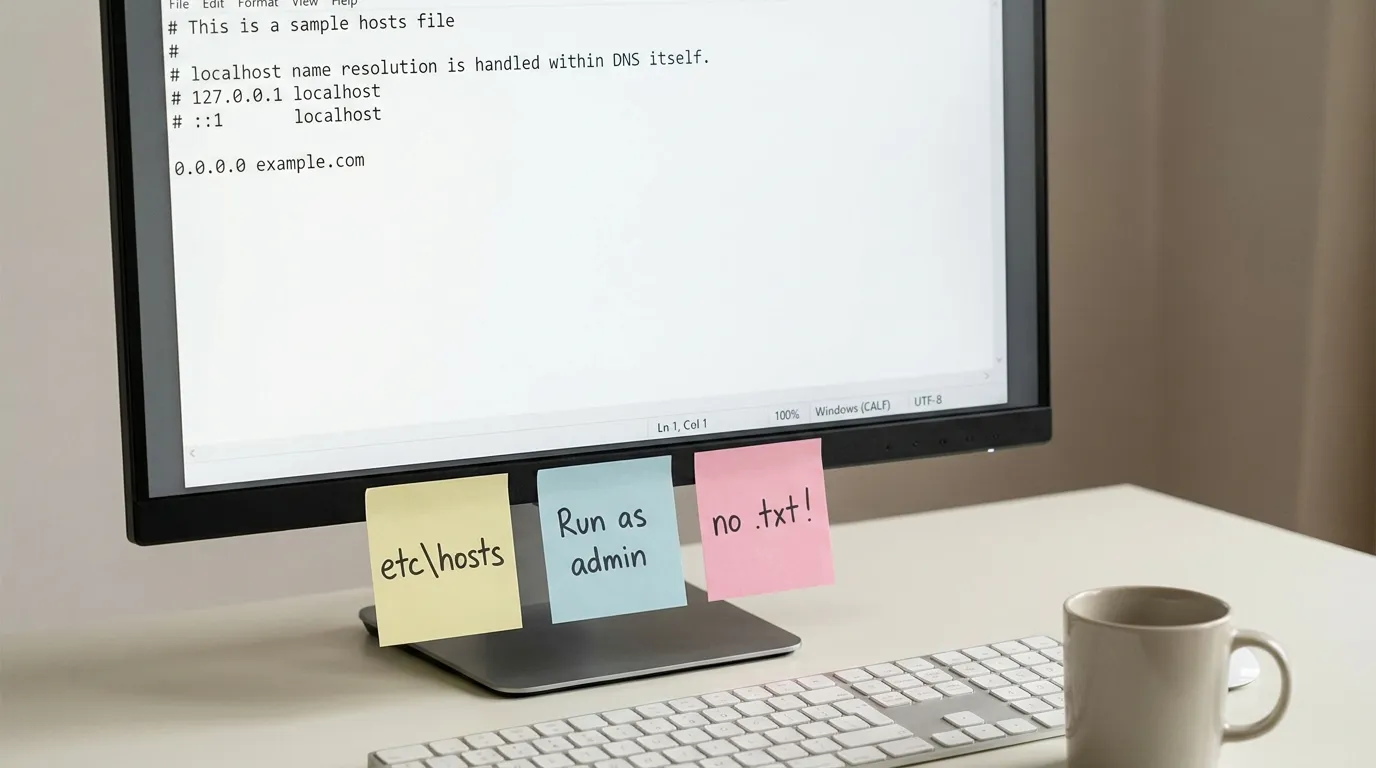
The Windows 11 hosts file location is C:\Windows\System32\drivers\etc\hosts. Same folder as Windows 10, 8 and 7. The file has no extension, which is the first thing that trips people up, and Windows only lets you save it from a program running as administrator, which is the second. The steps below apply to Windows 11 24H2 and 25H2 as of October 2026. When you want to edit it, you need administrative rights on your computer.
What the hosts file does
The hosts file is a plain text list used to map hostnames to IP addresses. Windows checks it before it asks a DNS server, so a hostname listed there resolves to that address and nothing else.
That makes it useful for a few jobs:
- Blocking websites by pointing a domain at 0.0.0.0 or 127.0.0.1, so the browser gets nowhere.
- Testing a site on a new server before the real DNS is switched over.
- Naming machines on your network, such as a NAS or a Raspberry Pi, so you can type a name instead of an IP address.
A default hosts file on Windows 11 contains only comment lines that start with #. Nothing in it is active until you add an entry.
Step 1: Go to the hosts file location
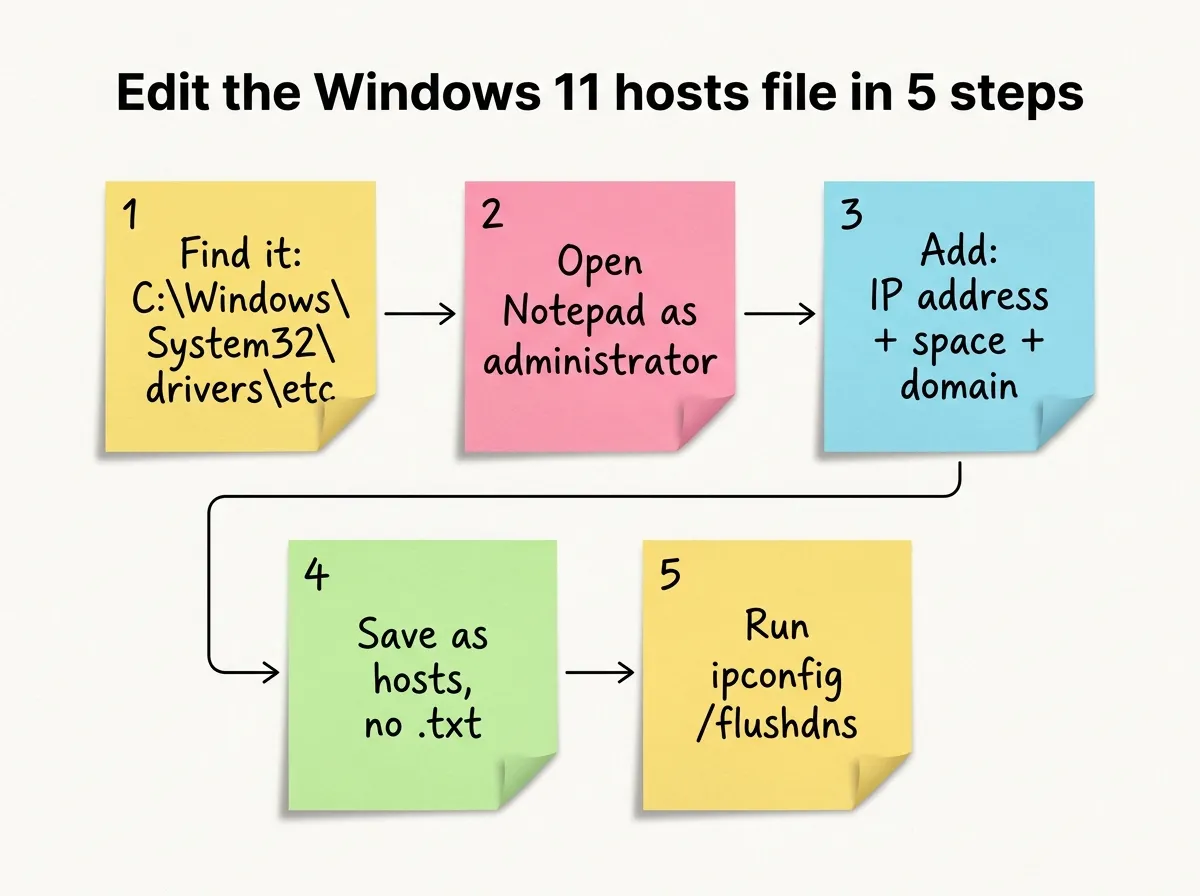
So where is the hosts file located? Open File Explorer, paste C:\Windows\System32\drivers\etc into the address bar and press Enter. You will see a file called hosts with no extension, next to files like lmhosts.sam, networks and protocol.
You can also press Win + R, type %WinDir%\System32\drivers\etc and click OK. Same folder, just quicker if Windows is not installed on drive C.
| Item | Value |
|---|---|
| Folder | C:\Windows\System32\drivers\etc |
| File name | hosts (no .txt, no extension at all) |
| Owner | SYSTEM, with read access for normal users |
| Who can save changes | Programs running as administrator |
| Same path on Windows 10? | Yes |
Step 2: Open Notepad as administrator
Double-clicking the file opens it read-only for practical purposes. You can type, but you cannot save. You need Notepad with admin rights.
- Close every Notepad window. Windows 11 Notepad restores old tabs, and a restored tab of the hosts file opened without admin rights will still refuse to save.
- Start Notepad with administrator rights. Open the Start menu, type
notepad, right-click the result and select Run as administrator. Click Yes at the User Account Control prompt. - Open the hosts file from inside Notepad. Click the File menu, choose Open, browse to
C:\Windows\System32\drivers\etc, and switch the file type dropdown from *Text Documents (*.txt)* to All Files. Select hosts and click Open.
If you prefer the command line, open Command Prompt as administrator and run the following command: notepad C:\Windows\System32\drivers\etc\hosts. Notepad inherits the admin rights. Before you change anything, save a copy: File > Save As, put it on your desktop as hosts-backup.
Step 3: Edit the file and save it without .txt
Each entry goes on its own line: the IP address first, then at least one space or tab, then the domain name. Lines starting with # are ignored, so you can use them for notes.
192.168.1.50 nas.homesends nas.home to a device on your network.203.0.113.10 example.compoints example.com at a test server.# 0.0.0.0 example.orgis a comment and does nothing.
Save with Ctrl + S. Skip Save As with the default settings: Notepad adds .txt, and Windows ignores the new hosts.txt. If you did that by accident, delete hosts.txt and save again with the file type set to All Files and the name typed as "hosts" in quotation marks.
Step 4: Block a website with the hosts file
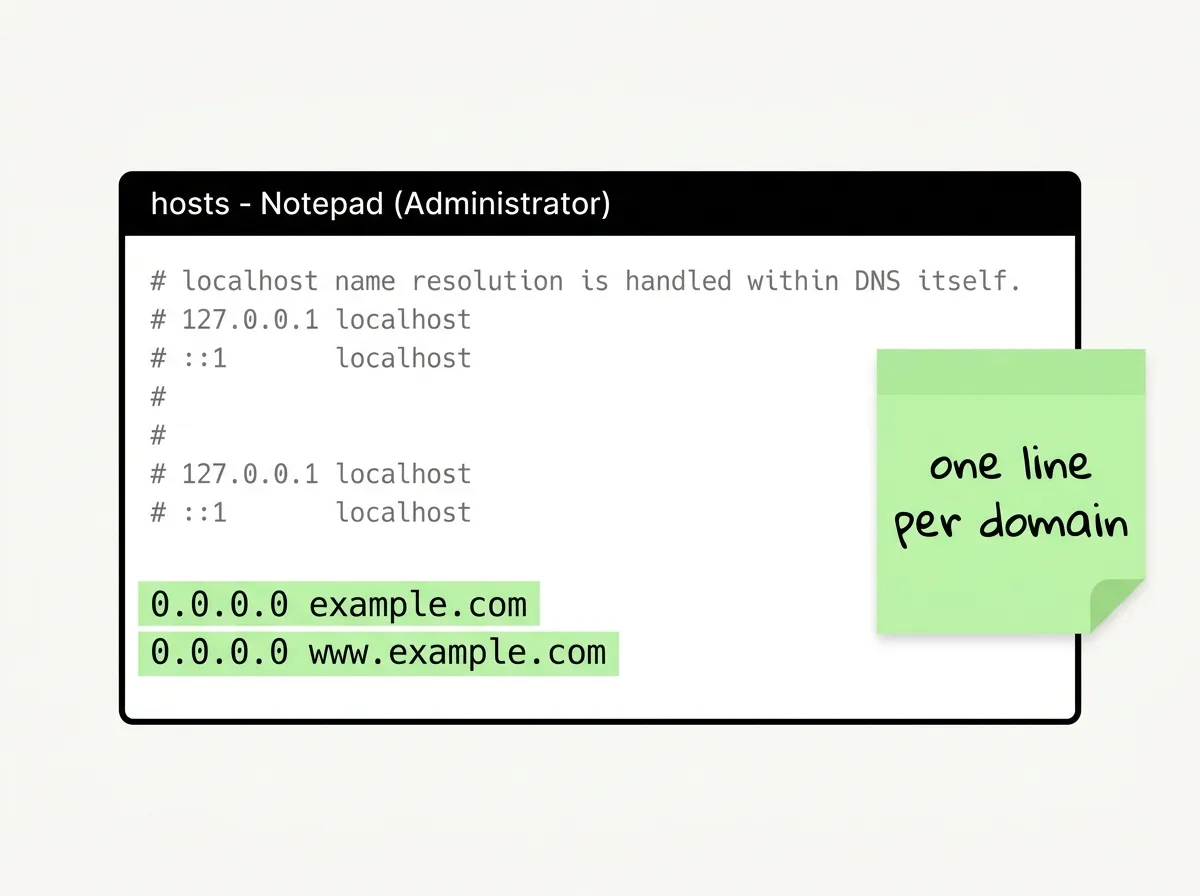
You can edit the hosts file to block websites you want to keep off this PC. Point each hostname at an address that goes nowhere. Use 0.0.0.0; it fails right away, while 127.0.0.1 can make the browser wait for a local web server.
- Add one line per domain, for example
0.0.0.0 example.com. - Add the www version too:
0.0.0.0 www.example.com. The hosts file has no wildcards, so every subdomain needs its own line. - Save the file with Ctrl + S and test the site in a fresh browser window.
The hosts file only covers this PC. Phones and other devices on the same network are not affected, and a VPN with its own DNS can bypass it.
Step 5: Flush DNS so the changes take effect
The DNS Client service in Windows usually notices hosts file changes on its own. But if an old address is still in the DNS cache, the site keeps loading as if nothing happened. Clear the DNS cache: open Command Prompt with administrator rights and run the following command: ipconfig /flushdns. You should see “Successfully flushed the DNS Resolver Cache.”
Browsers keep their own cache. Close and reopen the browser after the flush. If it still ignores your entries, check whether the browser uses DNS over HTTPS (Chrome calls it *Use secure DNS*, Edge has the same switch under Privacy, and Firefox hides it under Privacy & Security, as our guide to Firefox failing to load pages shows). DNS over HTTPS can send lookups straight to a resolver, skipping parts of the normal Windows lookup.
The permissions trap and Defender warnings
Two problems come up far more often than any others. Neither means your PC is broken.
“You don’t have permission to save in this location.” Notepad was not running as administrator, or you opened a restored tab. Close all Notepad windows and repeat step 2. Do not change the permissions on the etc folder or take ownership of the file to get around it; that leaves a system file writable for any program, including malware.
Microsoft Defender flags the hosts file. Malware likes to edit the hosts file to send you to fake sites, so Defender watches it. If you add entries that redirect or block well-known domains, including Microsoft’s own update and telemetry servers, Defender may report *SettingsModifier:Win32/HostsFileHijack* and offer to remove the threat. Removing it resets your entries. Blocking Microsoft’s update servers can also make Windows Update fail with connection errors; our guide on how to fix Windows Update errors covers that side. If every line in the file is yours, you can allow the detection under Windows Security > Virus & threat protection > Protection history. If you see lines you did not add, do not allow it. Reset the file instead.
How to reset the default hosts file
If sites stop loading after an edit, or you find entries you do not recognize, go back to the default. Microsoft describes the method in its support article on how to reset the hosts file back to the default, which applies to Windows 11 and 10.
- Create a clean file. Open Notepad, paste the default text from Microsoft’s article (only comment lines that start with #) and choose Save As. Type
"hosts"with the quotation marks, set the type to All Files, and save it to your desktop. - Rename the old file. In
C:\Windows\System32\drivers\etc, rename hosts to hosts.old. Approve the admin prompt. - Copy the new file in. Move the hosts file from your desktop into the etc folder, approve the prompt, then run
ipconfig /flushdns.
An empty hosts file also works. Windows does not need the comment lines; they are only examples.
FAQ
Is the hosts file location the same on Windows 10 and Windows 11?
Yes. Both use C:\Windows\System32\drivers\etc\hosts. Only the drive letter changes if Windows is installed somewhere other than C.
Why can’t I see the hosts file in the folder?
It is there, but the Notepad open dialog shows only .txt files by default. Switch the dropdown to All Files. In File Explorer the file shows up as “hosts” with the type “File”.
Do I need to restart after editing the hosts file?
No. Save the file, flush DNS if the old address still loads, and restart the browser. A full reboot is not needed.
Can I edit the hosts file without Notepad?
Yes, you can edit it with any text editor started as administrator, such as VS Code. Microsoft PowerToys also includes a Hosts File Editor with a simple list view, which is handy to test entries and switch them on and off.
Did this fix it?
0 readers say this fixed it
Good. One gripe fewer on the wall.
Sorry. Tell us what you tried, or see if others have the same problem.