- Computer Gripes
- Error code lookup
- 0x80070002
Error 0x80070002: Windows Update File Not Found (Fix)
Error 0x80070002 means Windows could not find a file it needed. Learn how to fix it in Windows Update: restart, troubleshooter, cache reset, then DISM.
Error 0x80070002 is the Windows way of saying “file not found.” A program looked for a file or folder that wasn’t there. You’ll see it most in Windows Update, where it usually means downloaded files are missing, half-finished or damaged. The message doesn’t tell you which file, so the solution is to clear out the bad pieces and let Windows download fresh ones.
Where error 0x80070002 shows up
The same number appears in several places and means slightly different things in each:
- Windows Update: a patch fails, listed as “Update failed to install” in your update history.
- Feature upgrades: a version upgrade stops partway or rolls back.
- Xbox app and Microsoft Store: a game or app won’t download, install or launch because a file it needs can’t be found.
- Outlook: a “file not found” message when adding an account.
This page covers the Windows Update issue. If this error came from the Xbox app, try the repair option in its Support menu, or run the Gaming Services Repair Tool if the app won’t open.
Likely causes of the 0x80070002 error
Microsoft’s troubleshooting article for Windows Update error 0x80070002 puts it down to missing or corrupt files, or an earlier installation that never finished.
| Cause | What’s going on | Fix step |
|---|---|---|
| Interrupted download | The update cache holds incomplete files | 1, 5 |
| Wrong date or time | The clock is far off, so the check for updates fails | 2 |
| Low disk space | No room on the drive to unpack the files | 4 |
| Damaged system files | A file the patch replaces is gone or broken | 6 |
| Earlier update left half-installed | The system is in an inconsistent state | 5, 7 |
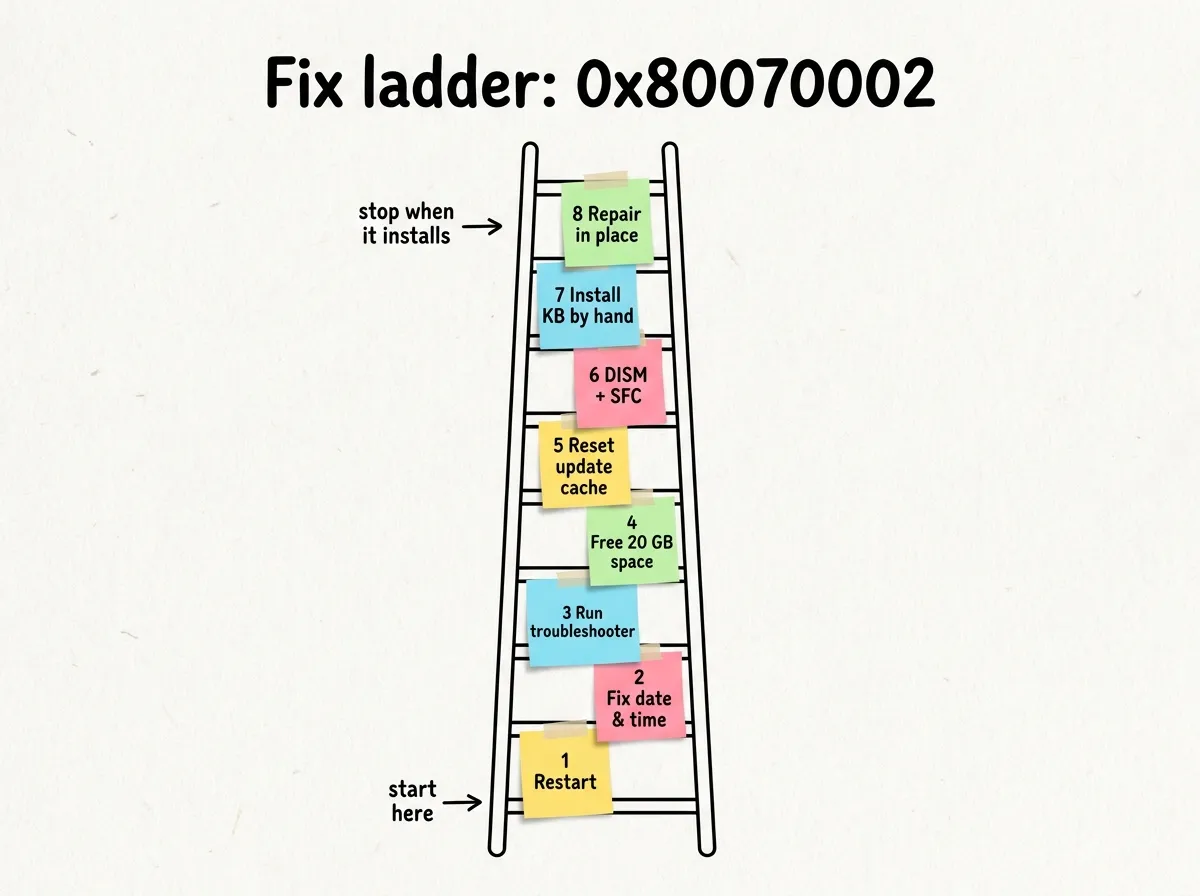
How to fix error 0x80070002: steps, easiest first
You need an administrator account from step 5 onward. Try these steps in order and stop as soon as the installation goes through.
- Restart properly. Hold Shift while you click Shut down, then turn the PC back on, open Settings and select Check for updates.
- Check the date and time. Go to Settings > Time & language > Date & time, make sure Set time automatically is on, and then click Sync now.
- Run the Windows Update troubleshooter. On Windows 11, open Settings > System > Troubleshoot > Other troubleshooters and select Run next to Windows Update. On Windows 10, it sits under Settings > Update & Security > Troubleshoot > Additional troubleshooters. Follow the on-screen instructions to complete the process.
- Free up disk space. Microsoft asks for at least 20 GB free on a 64-bit system (16 GB on 32-bit). Use Settings > System > Storage > Cleanup recommendations.
- Reset the update cache. Press the Windows key, type cmd, right-click Command Prompt and choose Run as administrator. Type the following command and press Enter:
net stop wuauserv. Do the same withnet stop bits,ren C:\Windows\SoftwareDistribution SoftwareDistribution.old,net start wuauservandnet start bits. Windows then builds a fresh folder and downloads the files again. - Repair system files. In the same window, run
DISM /Online /Cleanup-Image /RestoreHealth, wait for it to finish, and then runsfc /scannow. Restart your PC when both are done. - Download and install the patch by hand. Note the KB number from update history, search for it in the Microsoft Update Catalog and run the package that matches your system.
- Repair Windows in place. On Windows 11, Settings > System > Recovery > Fix problems using Windows Update reinstalls the current version and keeps your apps and files.
Still stuck? Our guide to fixing Windows Update errors covers antivirus, VPNs and stuck services.
What not to do
- Don’t delete files from
C:\Windows\WinSxSto “make room.” That folder is the component store this repair tool works from. - Don’t paste one-line PowerShell “fix scripts” from unknown sites. They download and run something you can’t see.
- Don’t edit the registry because a forum post says so. The registry fixes in that article target specific server log entries.
FAQ
Is 0x80070002 a virus?
No, it’s a standard Windows error for a missing file. If the issue keeps coming back, a full scan with Microsoft Defender is still a sensible check.
Will renaming SoftwareDistribution delete my files?
No. That folder only holds update downloads and history. Your documents, photos and apps stay put.
Is 0x80070002 the same as 0x80070643?
No. Error 0x80070643 is a general install failure, often tied to the recovery partition or .NET updates. Both are in our error code library.
Did this fix it?
0 readers say this fixed it
Good. One gripe fewer on the wall.
Sorry. Tell us what you tried, or see if others have the same problem.