- Computer Gripes
- Windows Update Problems: What Breaks and…
Windows Update Problems: What Breaks and How to Fix It
Windows Update problems on Windows 11 and 10: why patches fail, get stuck or break your PC, how to fix or undo them, and which gripes Microsoft never solved.
Fixes on this wall
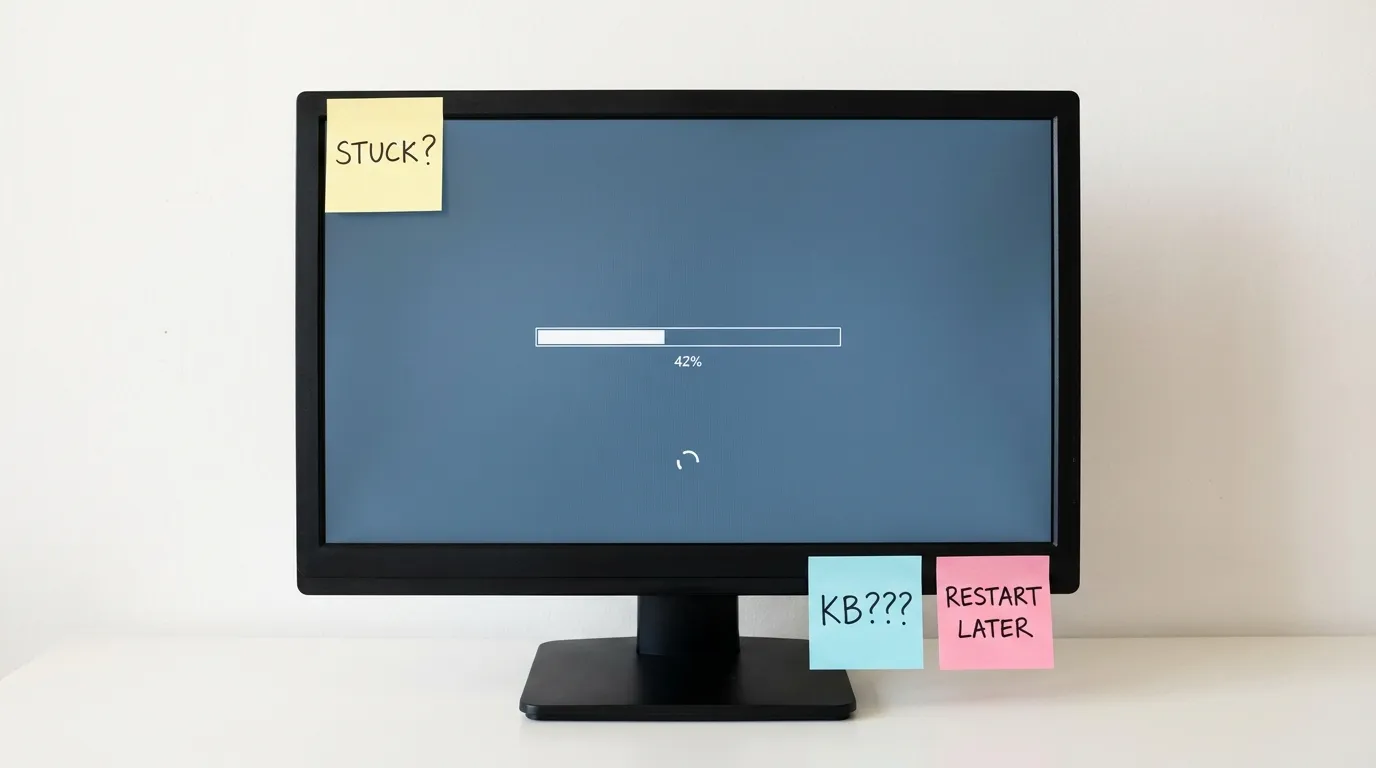
Windows Update is the one program on your computer you can’t really opt out of, and it shows. Most Windows Update problems fall into three groups: the patch won’t download or install, the installation hangs halfway, or it finishes and something else on your device stops working. Each group has its own fix. This page is the overview. The guides listed above go into detail on single errors, and the sections below tell you which one you need.
Common Windows Update problems: error, stuck or broken
Start by naming the symptom. The cause, and the first thing to try, follow from it.
| Symptom | Usual cause | First move |
|---|---|---|
| Error code such as 0x80070002 | Corrupted update files in the cache folder | Reset the cache, then check for updates again |
| Download stuck at 0% | Stalled service, VPN or proxy in the way | Shut down fully, pause the VPN |
| “Working on updates” never finishes | Large feature release, or a failed installation rolling back | Wait up to two hours, then force a restart |
| Not enough disk space | System drive nearly full | Free 20 GB or more on drive C |
| Patch installed, now something is broken | Driver conflict or a buggy fix | Uninstall it, check known issues |
| PC restarted overnight without asking | Active hours and restart settings | Adjust active hours or pause |
If your screen shows an error code, our step-by-step guide on how to fix Windows Update errors has a table of the common codes and what each one means.
Run the troubleshooter, then repair corrupted files
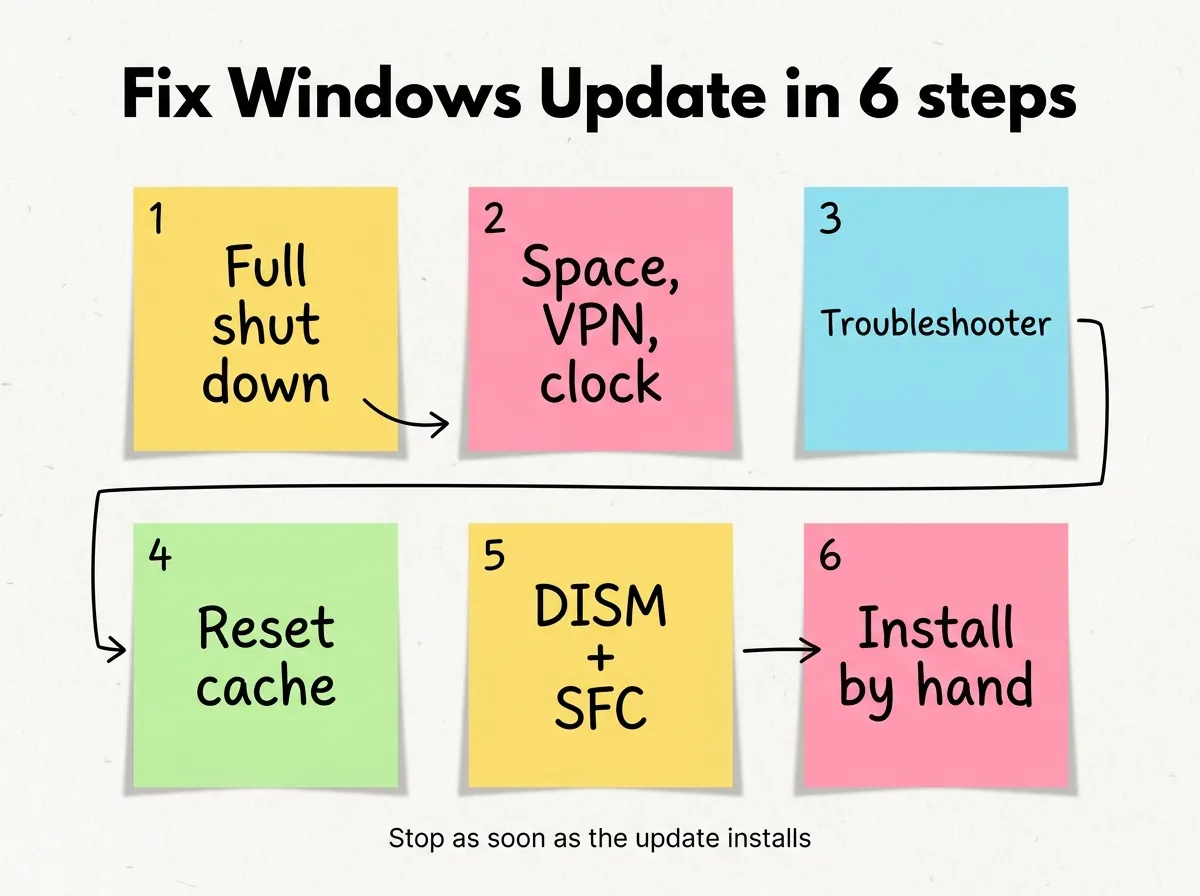
You don’t have to understand the cause to fix most failed installs. Work through the following steps in order and stop as soon as the patch goes in. You need an administrator account from step 4 on.
- Shut down completely and start again. Hold Shift while you select Shut down in the Start menu. A normal restart can keep a stuck session alive because of Fast Startup.
- Check free space, connection, date and time. Open Settings > System > Storage and run the cleanup recommendations to free disk space. Disconnect USB drives, pause any VPN, and make sure Set time automatically is on.
- Run the Windows Update troubleshooter. Go to Settings > System > Troubleshoot > Other troubleshooters and click Run next to Windows Update. On newer builds this tool opens in the Get Help app. Restart your computer when it’s done.
- Reset the update cache. Type
cmdin the Start menu and select Run as administrator. Typenet stop wuauservand press Enter, thennet stop bits. Rename the folder withren C:\Windows\SoftwareDistribution SoftwareDistribution.oldand start both services again withnet start. - Repair system files. In the same command window, type
DISM /Online /Cleanup-Image /RestoreHealthand press Enter, wait for 100%, then runsfc /scannowand restart your system. - Install the patch by hand. Look up the KB number in the Microsoft Update Catalog, download the package for your version and run it.
If all six fail, Settings > System > Recovery > Fix problems using Windows Update reinstalls Windows and keeps your apps and files.
When a patch breaks your device
This complaint is as old as Windows Update itself. A patch installs without complaint, and the next morning the printer won’t print, the audio is gone or a game crashes. Sometimes the fix itself is at fault. Just as often, the restart that comes with it is the first one in weeks, and it brings out a driver or setting change that was already waiting.
Either way, you can undo it:
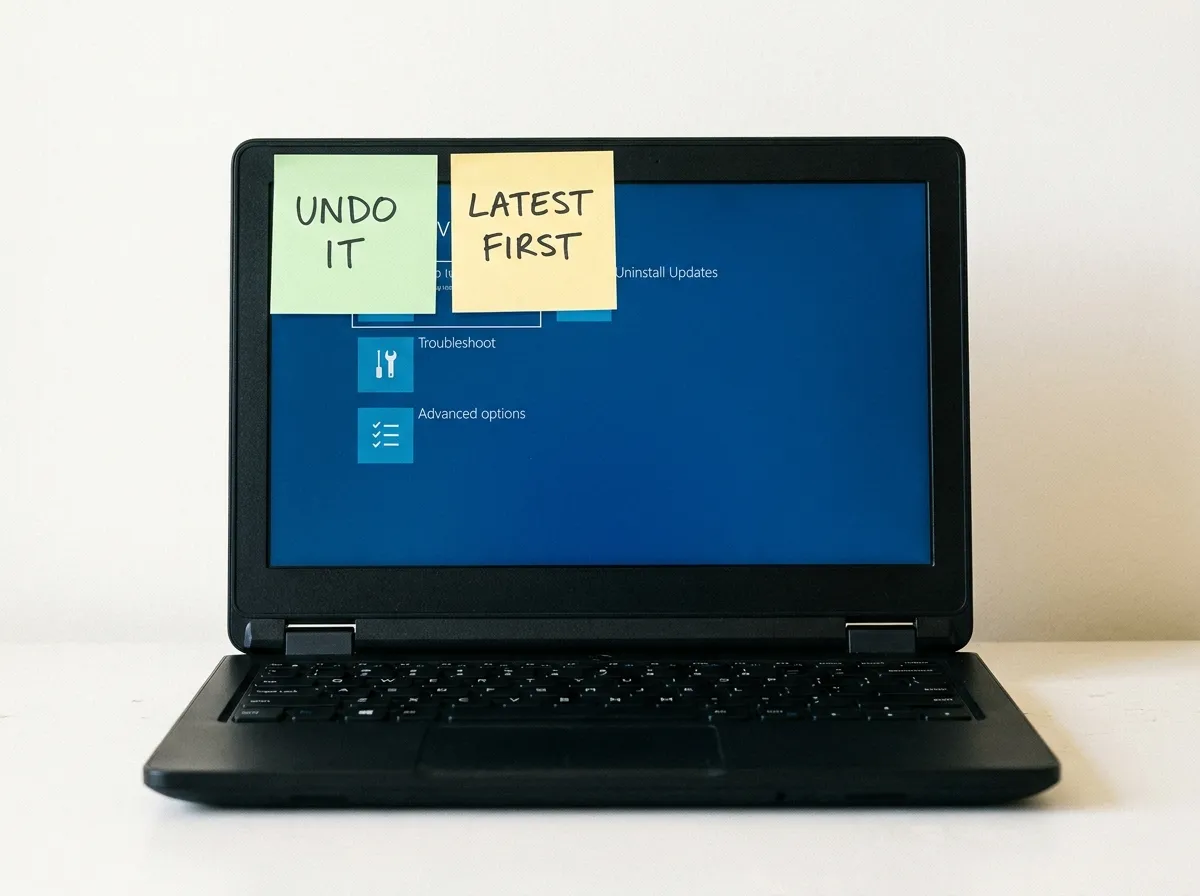
- Uninstall it. Open Settings > Windows Update > Update history > Uninstall updates, find the KB number that arrived just before the problem and select Uninstall.
- Roll back a feature release. Within ten days of a big version upgrade, Settings > System > Recovery > Go back returns you to the previous version.
- PC won’t boot afterwards. After two or three failed starts, Windows opens the recovery environment. Choose Troubleshoot > Advanced options > Uninstall Updates and remove the latest quality update first.
- Check whether Microsoft knows. The Windows release health dashboard lists open known issues for each Windows version, with workarounds and the date a fix shipped.
Microsoft can also reverse some non-security changes remotely through a mechanism called Known Issue Rollback, so the issue can disappear on its own after a day or two. Security fixes are not rolled back that way.
The honest downsides
Turning Windows Update off for good is a bad idea, because it closes security holes that attackers use. Living with it still has costs. These are the complaints we hear most:
- Restarts on Microsoft’s schedule. Active hours help, but a PC left on overnight will usually restart to finish.
- Vague release notes. Patches are named by KB number, and the descriptions rarely tell a home user what changed or why it matters.
- Optional downloads that look mandatory. Preview releases and driver packages sit next to security fixes, and it isn’t obvious which ones you can skip.
- Size and time. Feature releases can take an hour and need a lot of free space, which hurts on small laptops.
- Upsell screens. After big upgrades, Windows sometimes greets you with prompts for Microsoft accounts, OneDrive backup or Microsoft 365 before you reach the desktop.
- Windows 10 is on borrowed time. Regular support for Windows 10 ended in October 2025. Home PCs only get security patches through the consumer Extended Security Updates program, which runs until October 12, 2027. A Windows 10 PC that is not enrolled gets no security patches at all.
Taking back some control
You can’t switch Windows Update off in Settings, but you can decide when it runs:
- Pause for one to five weeks under Settings > Windows Update. Useful when a known-bad patch is out or you’re travelling.
- Set active hours so Windows doesn’t restart your computer while you work.
- Mark your connection as metered. Windows then holds back most downloads until you allow them.
- Turn off “Get the latest updates as soon as they’re available” to stay away from early, optional features.
If you need more than five weeks, we compare the ways to stop Windows Update and what each one costs you in security. Third-party antivirus is another quiet troublemaker. If a suite keeps blocking installs, removing McAfee completely or switching to the built-in Defender often ends the failures.
Are there alternatives?
For Windows itself, not really. Microsoft is the only source of Windows patches, and tools that claim to replace or “repair” Windows Update tend to cause more problems than they solve. For your other apps, a package manager such as winget can bring browsers and utilities up to date in one go. For an old PC stuck on Windows 10, the realistic options are moving to Windows 11 if the hardware qualifies, or a Linux distribution or ChromeOS Flex if it doesn’t.
Back then: Windows Update in 2004
In 2004, Windows Update was a website you opened in Internet Explorer, and it often failed with codes that meant nothing to anyone. A wrong system clock, a firewall prompt or a stopped background service could block it, and on Patch Tuesday the servers sometimes simply couldn’t keep up. Patches sometimes needed a restart they never mentioned, and within a couple of years well-known columnists were telling readers to switch Automatic Updates off. Installs are far more reliable now. The error codes are still cryptic, though, and the surprise restart is still what people complain about first.
Quick answers
Why does Windows Update keep failing on the same patch?
Usually corrupted files in the cache folder or a damaged system file. Reset the cache, run DISM and SFC, then try to install it by hand.
Is it safe to pause Windows updates?
For a few weeks, yes. Don’t leave a PC unpatched for months, since security fixes close holes that attackers already use.
Can a bad update permanently damage my PC?
Very rarely. Almost every patch can be uninstalled or rolled back, even from the recovery screen when Windows won’t start.