- Computer Gripes
- Hardware
- Dell Laptop Won’t Turn On? Fixes…
Dell Laptop Won’t Turn On? Fixes by Symptom
Dell laptop won't turn on? Match what you see (no lights, black screen, blinking LED codes) to the right fix, from a quick power drain to BIOS recovery.
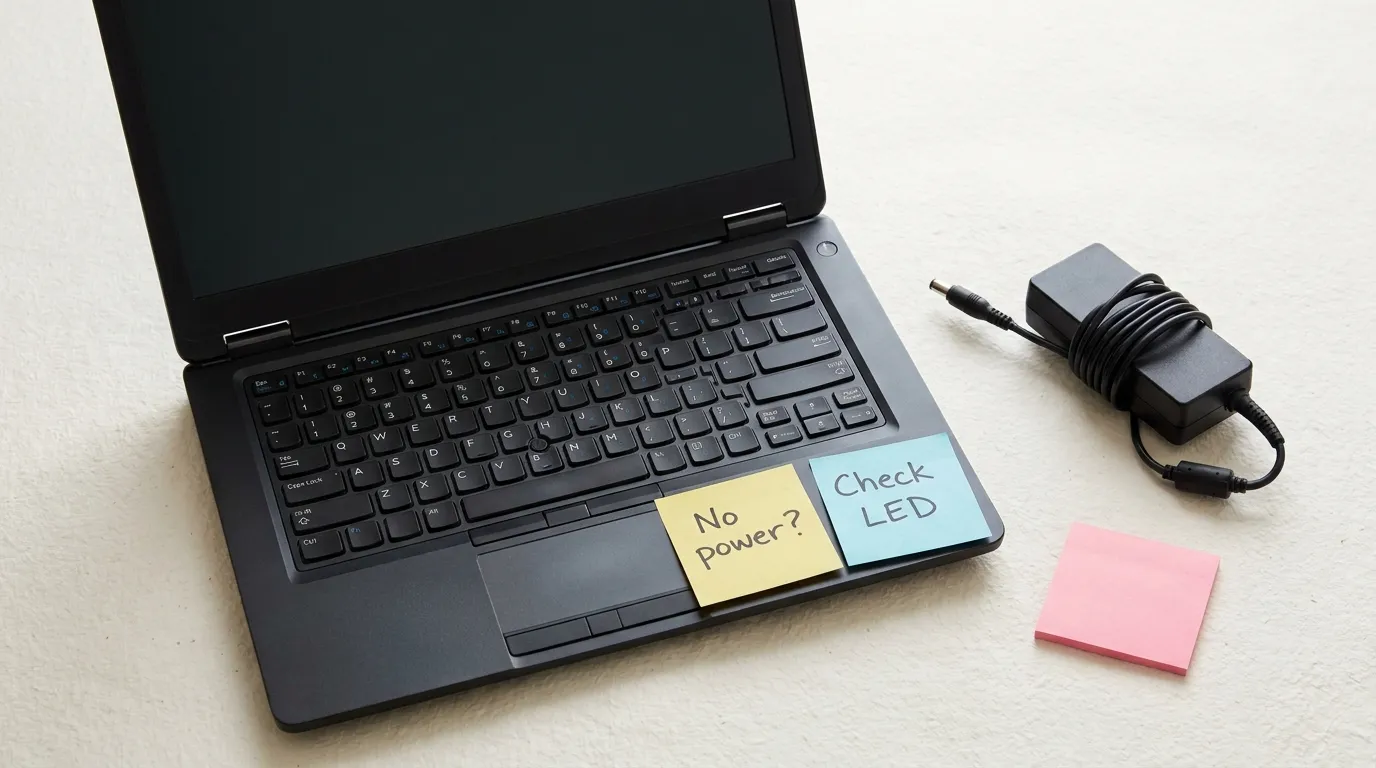
It’s 8:40 on a Monday. You open the lid, press the power button, and nothing happens. No fan, no keyboard light, no Dell logo. You press it again, harder this time, as if that ever helps.
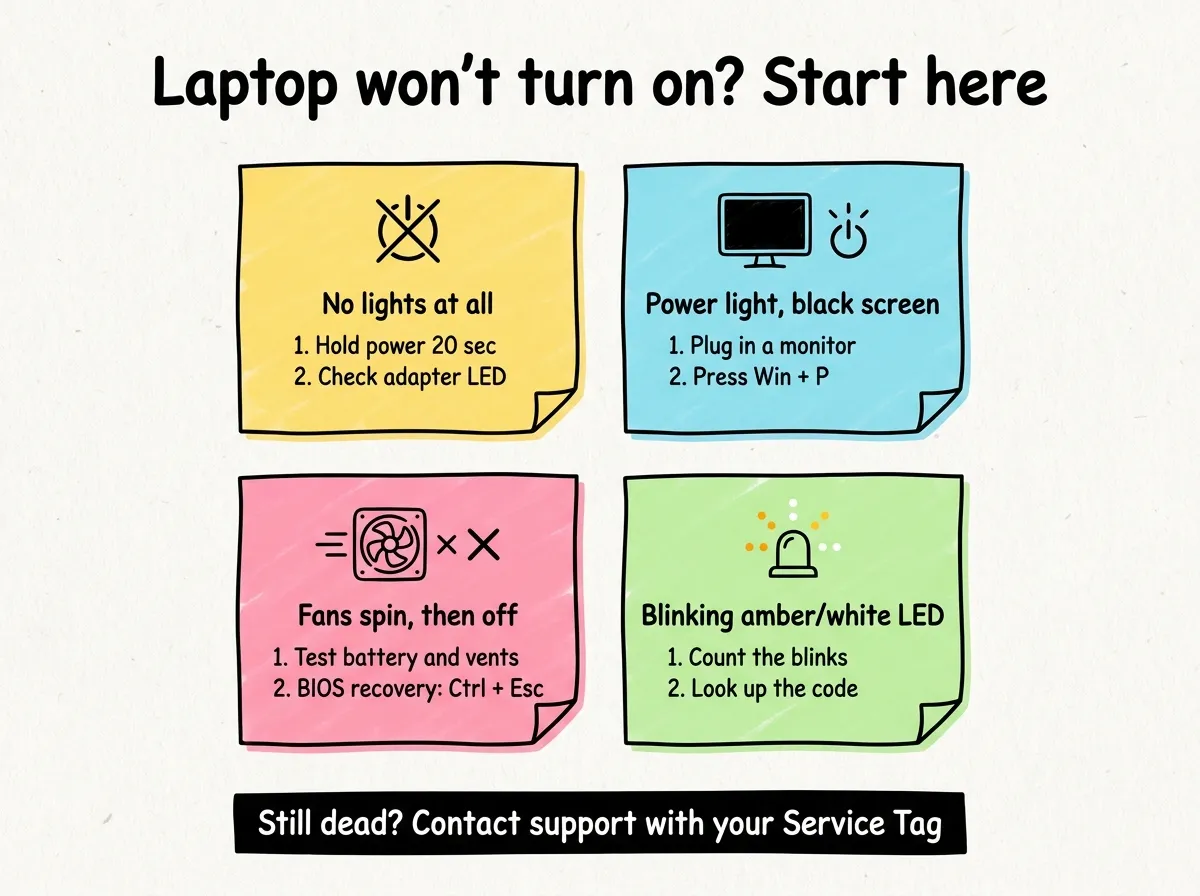
When your Dell laptop won’t turn on, the cause is usually one of a short list: stuck residual power, a dead charger, a battery problem, a corrupted BIOS, or a display that works but stays dark. Read what your computer *is* doing before you fix anything. Zero lights calls for a different fix than fans that spin and quit, so match your symptom first.
What does your Dell computer actually do?
Press the power button once and watch for about 30 seconds. Then find your row:
| What you see | Likely cause | Start with |
|---|---|---|
| No lights, no fan | Residual power, dead adapter, drained battery | Power drain, AC adapter check |
| Power light on, black screen | Display, RAM, stuck in sleep | External display test |
| Fans spin, it shuts off | Battery, heat, BIOS fault | Battery test, BIOS recovery |
| Blinking amber/white LED or beeps | A hardware error code | Read the code |
| Dell logo, no Windows | Windows or the hard drive | Boot into Safe Mode or run Startup Repair |
A Dell logo means the hardware works and the issue sits in Windows or storage, so try Safe Mode. This guide covers the first four rows.
Symptom 1: No lights, no fan, no sign of life
This looks the worst and is often the easiest fix. Laptops can hold a small leftover charge in their circuits, sometimes called flea power. If the power controller gets confused, the system won’t boot until that charge is gone.
Fix A: Drain the residual power (hard reset)
- Unplug the AC adapter and remove everything else: USB drives, docks, mice, external displays, SD cards.
- If your model has a removable battery, take it out. Most newer models have an internal one, so skip this.
- Press and hold the power button for 15 to 20 seconds.
- Reconnect only the AC adapter (and the battery, if you removed it) and press power.
A hard reset doesn’t touch your files or Windows. It clears the stuck power state, and it’s worth trying twice before you move on.
Fix B: Check the AC adapter and the outlet
A charger can look fine and still be dead. Check these:
- Try a wall outlet you know works. Skip power strips for now.
- Look at the adapter’s own LED. Many Dell bricks have a small white light; if it’s dark while plugged in, the adapter or its cable has failed.
- Inspect the cable for frayed sections, kinks near the barrel, or burn marks. Any of these means replacement, not tape.
- Check the charging port for bent pins, lint, or a loose fit.
- Borrow a compatible Dell adapter with the same wattage or higher. If your computer starts with it, you found the problem.
On USB-C models, try a different USB-C port too. Some only accept power through specific ports.
Symptom 2: Power light on, but the display stays black
You may hear the fan, yet nothing shows up. Power is reaching the board, so the issue is the display chain or memory.
Test the display before blaming the hardware
- Connect an external monitor or TV via HDMI or USB-C.
- Press
Windows + Pand choose Duplicate or Second screen only. The shortcut works even when you can’t see anything. - If the external display shows Windows, the built-in panel, its cable, or its backlight is the problem.
Many recent Dell models also have a built-in LCD self-test (BIST). On a lot of them you hold the D key and press power, and the panel cycles through solid colors. If those colors appear, the panel works. The key combo depends on the model, so check your manual if D does nothing.
A faint image visible under a flashlight means the backlight has failed. That’s a repair job.
Sometimes the device isn’t off at all and is stuck in sleep or hibernation. Press Windows + Ctrl + Shift + B to restart the graphics driver. If nothing changes, run the hard reset from Symptom 1.
Symptom 3: Fans spin, then it shuts off
A machine that runs for a few seconds and dies usually has a battery, heat, or BIOS problem.
Rule out the battery and heat
- Run on the adapter alone. If the battery is removable, take it out and start on AC power. If it boots, the battery is the culprit.
- Watch the battery light. A steady amber light on many Dell models means the battery needs attention.
- Check for swelling. A bulging keyboard deck or a touchpad that no longer clicks can mean a swollen battery. Stop using the laptop and get it replaced; don’t puncture or force it.
- Clear the vents. Dust can trip thermal shutdown within seconds. Let it cool, use a hard surface, and blow out the vents with short bursts of compressed air.
Try a BIOS recovery
An interrupted BIOS update or corrupted firmware can make your computer spin up and stop before showing anything. Dell laptops have a recovery mode that uses a backup copy of the BIOS. According to Dell’s BIOS recovery guide:
- Remove all USB drives and make sure the battery has at least 25% charge.
- Unplug the power cable.
- Press and hold
Ctrl + Escon the built-in keyboard (external keyboards don’t work here). - While holding the keys, plug the power cable back in. Release them when the recovery screen appears.
- Select Recover BIOS, then Continue. The system may restart several times, so keep it on AC power.
If you see “no recovery image found,” use Dell’s USB method with the BIOS file for your model. The hard drive method only works if the original drive is installed, Windows wasn’t reinstalled, and the drive isn’t BitLocker-encrypted. Once it boots, press F2 at the Dell logo and make sure your BIOS settings, such as date, time and boot mode, still look right.
Symptom 4: Blinking LED codes or beeps
Here your laptop tells you what’s wrong. When a Dell computer can’t complete POST (the power-on self-test), it often reports the failure through the battery or power LED: a number of amber blinks, a pause, then a number of white blinks.
These codes appear in Dell’s own reference tables for Latitude and Precision laptops:
| Code (amber, white) | Meaning | What you can do |
|---|---|---|
| 2, 1 | CPU failure | Contact Dell support |
| 2, 2 | System board, BIOS or ROM failure | Try BIOS recovery |
| 2, 3 | No memory (RAM) detected | Reseat the RAM if you can reach it |
| 2, 7 | LCD failure | Run the display test |
| 3, 1 | CMOS (RTC) battery failure | Replace the coin cell or call Dell |
Tables differ between product lines, so confirm the meaning in your model’s service manual. Older models beep instead: count the beeps and look up the number.
When to contact Dell support
Some problems are past home fixes. Contact Dell support, or a repair shop if the warranty has ended, when:
- there’s no sign of life with a known-good adapter after a power drain,
- the LED code points to the CPU, system board, or memory,
- the battery is swollen,
- BIOS recovery fails or you keep getting the same error,
- there was a spill, a drop, or a burning smell.
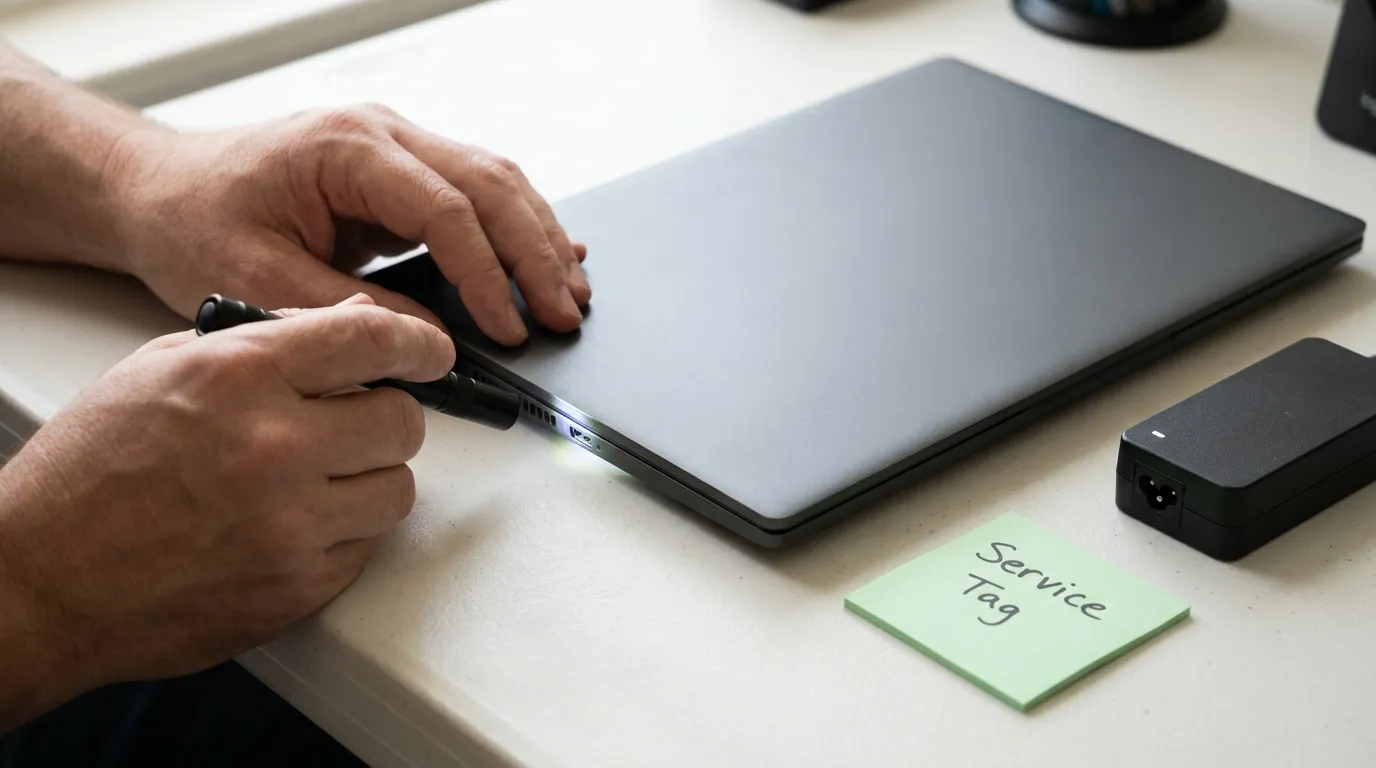
Have your Service Tag ready (it’s on the bottom of the laptop). If Windows starts but shows an error, take a screenshot on your Dell for the technician. If you have no backup, say so up front and ask them to keep the hard drive or SSD intact.
FAQ
Why won’t my Dell laptop turn on even when plugged in?
Usually the adapter isn’t delivering power (check its light and try another outlet) or the power controller is stuck. A hard reset with everything unplugged fixes the second case most of the time.
Is it worth repairing a Dell laptop that won’t turn on?
If the cause is the adapter, battery, or BIOS, almost always yes. A failed system board in an older machine is a judgment call based on the quote and its age.
If your computer starts but Windows then fails to update, our guide on how to fix Windows update errors picks up from there.
Did this fix it?
0 readers say this fixed it
Good. One gripe fewer on the wall.
Sorry. Tell us what you tried, or see if others have the same problem.