- Computer Gripes
- Error code lookup
- 0x8024001e
Error 0x8024001e: Windows Update Service Stopped (Fix)
Error 0x8024001e means Windows Update or the Microsoft Store stopped mid-task because a service or the PC was shutting down. Causes and fixes, easiest first.
Error 0x8024001e means Windows Update was cut off in the middle of a job. Microsoft’s Windows Update error code list names it WU_E_SERVICE_STOP: “Operation didn’t complete because the service or system was being shut down.” Often nothing is broken. Something stopped the process before it finished, and the error code doesn’t say what.
Where you see 0x8024001e
- Windows Update: a download or installation stops, often after a long “Checking for updates” phase.
- Microsoft Store: an app download fails with the same code. Store downloads also rely on background services such as BITS.
- Work PCs: admins find it in logs from a WSUS server or during app rollouts, for example the Intune Company Portal. If IT manages your computer, ask them first.
In each place the code reports an interrupted job, but the reason differs, so the context tells you where to start.
Likely causes
| Likely cause | What you may notice |
|---|---|
| Restart, sleep or shutdown during the installation | The error appears after the PC woke up or rebooted |
| Background service crashed or was stopped | Its status shows Stopped, or the next check hangs |
| Damaged download or Store cache | The same patch or app fails every time |
| Security software or a “tuning” tool | Installs fail only while that tool runs |
| Unstable internet connection | Downloads stall, other sites load slowly |
| Damaged system files or a full drive | DISM or SFC reports problems, drive C: is nearly full |
How to fix error 0x8024001e
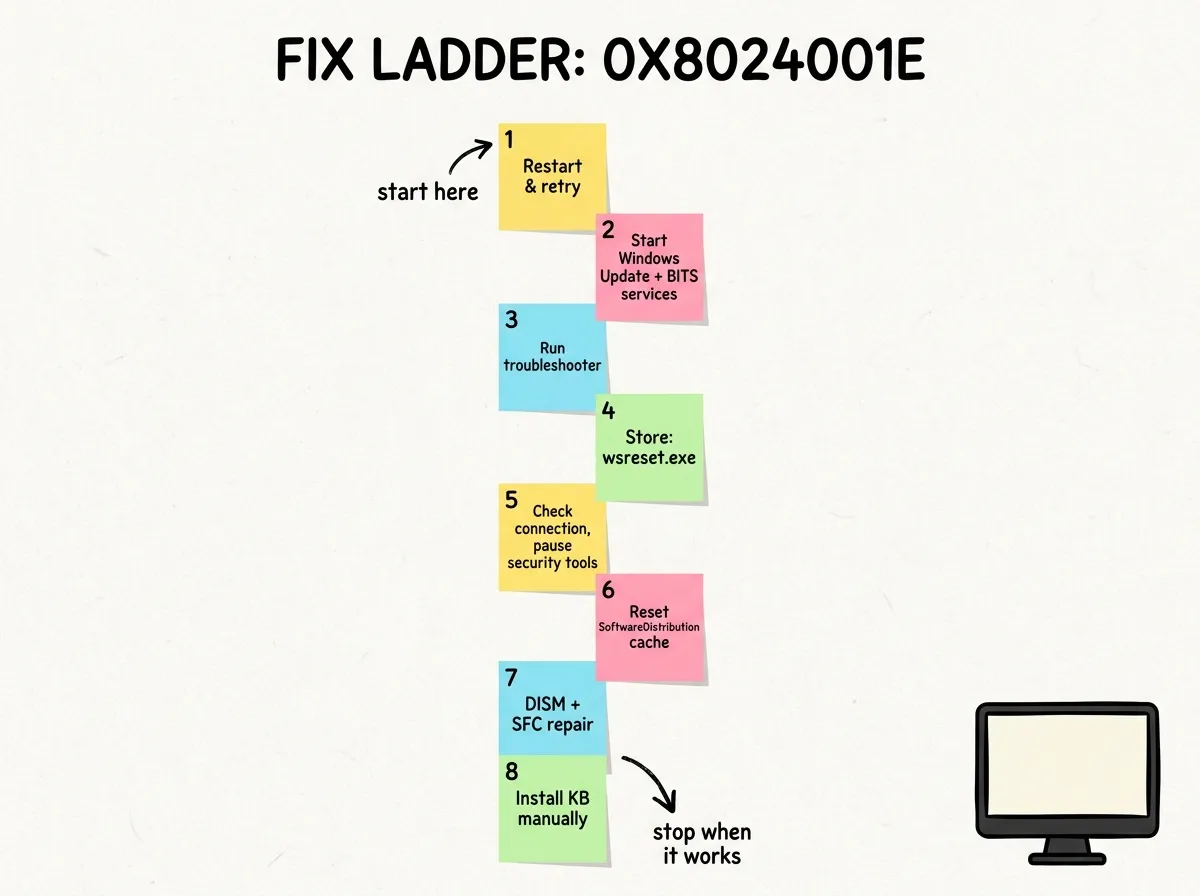
There are eight steps. Try again after each one and stop as soon as the installation works. The menu paths below are as of 2026 for Windows 10 and Windows 11.
- Restart the computer (Restart, not Shut down), keep it plugged in and awake, then click the Check for updates button in Settings. A single interrupted job usually goes through on the second try.
- Check the services. Press the Windows key + R, type
services.mscand press Enter. Find Windows Update and Background Intelligent Transfer Service (BITS). Neither should be set to Disabled. If the status of either is Stopped, right-click it and choose Start. - Run the troubleshooter. On Windows 11 go to Settings > System > Troubleshoot > Other troubleshooters and click Run next to Windows Update; current builds open the Get Help app for this. On Windows 10 it sits under Update & Security > Troubleshoot > Additional troubleshooters.
- For a Microsoft Store error, press Windows key + R, type
wsreset.exeand wait until the Store opens again. This clears the Store cache, and your installed apps stay. - Check your internet connection, turn off any VPN or proxy and pause third-party security or “PC optimizer” tools for the install. Switch the security software back on right after. Free a few gigabytes on drive C: if it’s nearly full.
- Reset the download cache. Open Command Prompt as administrator and run the following:
net stop wuauservandnet stop bits. Rename C:\Windows\SoftwareDistribution to SoftwareDistribution.old, then runnet start bitsandnet start wuauservand restart. - Repair system files. In the same window run
DISM /Online /Cleanup-Image /RestoreHealthand thensfc /scannow. Restart when both are done. - Install the patch by hand. Find the KB number in your update history and download the matching package from the Microsoft Update Catalog.
If Windows says the service is disabled rather than stopped mid-job, you’re looking at a related code: see our page on error 0x80070422. Our guide to Windows Update errors explains each step in more detail. On Windows 10 with consumer ESU, which runs until October 12, 2027, the same steps apply.
What not to do
- Don’t set Windows Update to Disabled to “stop the error”. That blocks every future security patch.
- Don’t delete SoftwareDistribution while the services run. Stop them first and rename the folder, so you can go back.
- Don’t download “fixer” tools from random sites. Some of them stop services themselves.
- Don’t close the lid or pull the plug while a big installation runs.
FAQ
Is 0x8024001e a virus?
No. The error code only says a job was stopped halfway. If you suspect malware, a user can run a full scan once updates work again.
Why does the Microsoft Store show 0x8024001e?
The Store reports the code when its download was cut off, for example because a background service stopped. Try step 4 (wsreset.exe) first, then steps 2 and 6.
What if none of these steps work?
Check our error library for any other code Windows shows alongside it. An in-place repair install keeps your files and apps and comes before a full reset.
Did this fix it?
0 readers say this fixed it
Good. One gripe fewer on the wall.
Sorry. Tell us what you tried, or see if others have the same problem.