- Computer Gripes
- Windows
- How to Stop Windows Update: Pick…
How to Stop Windows Update: Pick a Method by Time
How to stop Windows Update on Windows 11: pause it for up to 5 weeks, use a metered connection, Group Policy or the service, with the real risks of each.
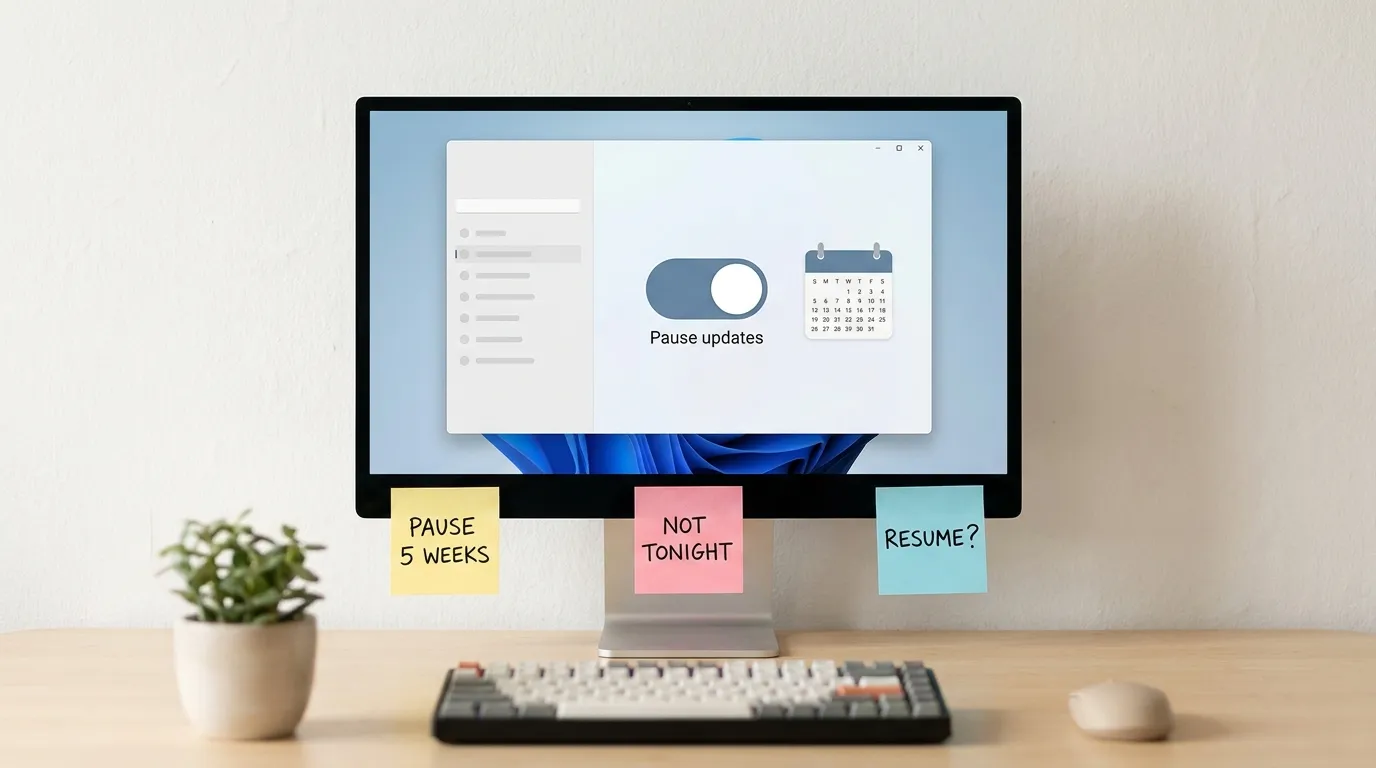
Windows Update picks its moments badly: the night before a deadline, halfway through a game, on a hotel Wi-Fi that charges by the gigabyte. If you want to know how to stop Windows Update, the useful first question is how long you need it stopped. A few days calls for a different method than a few months, and each method has its own catch.
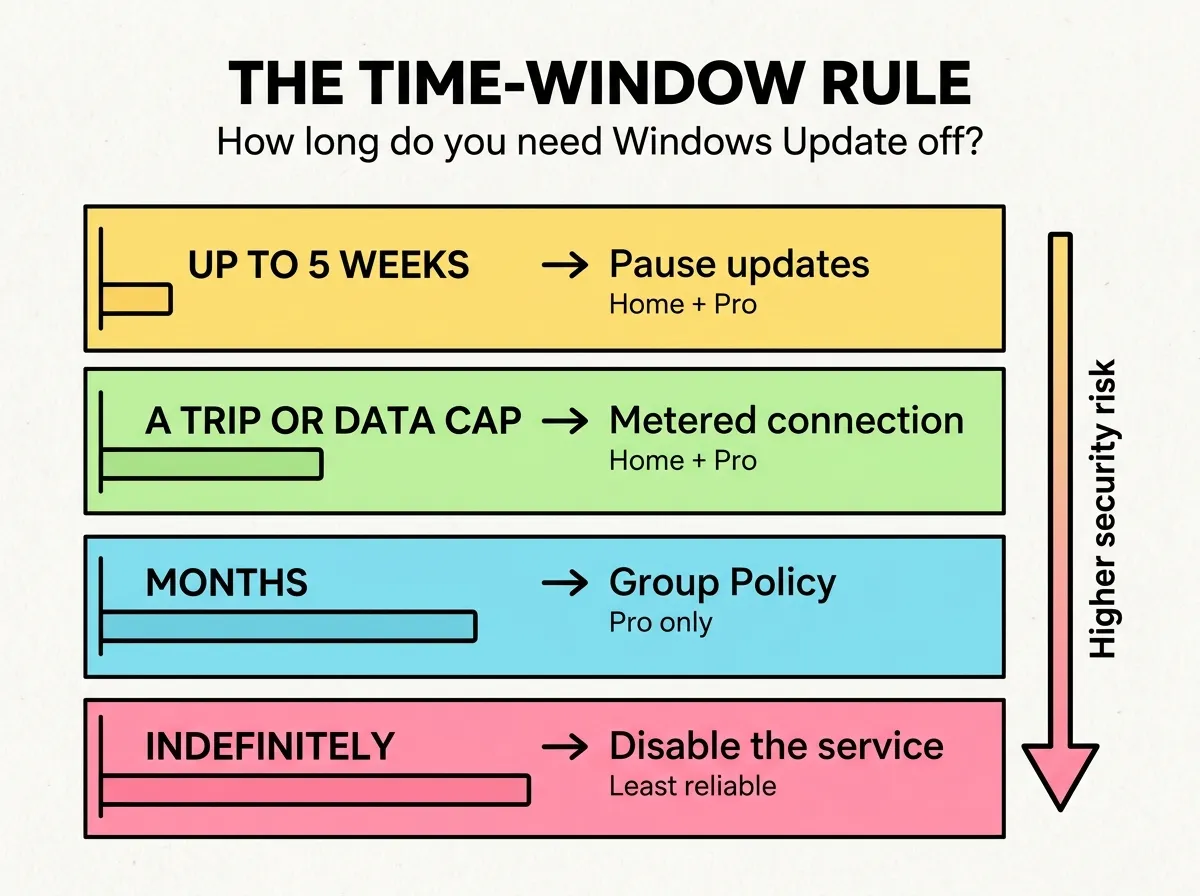
This guide sorts the four standard options by that one question. We call it the time-window rule: pick the lightest method that covers your window, and undo it when the window closes. Everything below applies to Windows 11 (24H2 and 25H2). Windows 10 has similar menus, but it stopped getting free security updates when support ended on October 14, 2025, so it makes even less sense to turn off automatic updates there.
The time-window rule at a glance
| How long you need updates off | Method | Windows edition | Downside |
|---|---|---|---|
| Up to 5 weeks | Pause updates in Settings | Home and Pro | Updates resume on their own when the pause ends |
| A trip or a data cap | Metered connection | Home and Pro | Windows still downloads some updates it considers required |
| Months, on your schedule | Group Policy: Configure Automatic Updates | Pro, Enterprise, Education | You must check for updates by hand, or you fall behind |
| Indefinitely | Disable the Windows Update service | Home and Pro | Windows tends to switch it back on; no security patches |
The higher the row, the easier the changes are to undo and the smaller the security cost to your system.
Up to 5 weeks: pause updates
Pausing is the method Microsoft built for this, and it is the right answer for most people. It works on Windows 11 Home and Pro.
- Open Settings (press Win + I) and select the Windows Update page.
- Next to Pause updates, open the drop-down menu and select the period you want, from 1 week up to 5 weeks.
- To end the pause early, click Resume updates. Windows checks for updates right away.
According to Microsoft’s own page on managing updates in Windows, you can pause for up to 35 days from the current date, and extending a pause does not add to time already used. When the pause ends, Windows will automatically download and install the latest updates before you can pause again. An update that is still downloading gets canceled when you pause, which also answers a common question: yes, you can stop an update in progress, as long as it has not reached the restart stage. Once you see “Working on updates, don’t turn off your computer,” let it finish. Cutting power at that point is how you end up searching for how to fix Windows Update errors.
If your real problem is surprise restarts rather than the updates themselves, set Active hours under Windows Update > Advanced options instead. Windows will not restart the computer during those hours.
For a trip or a data cap: set a metered connection
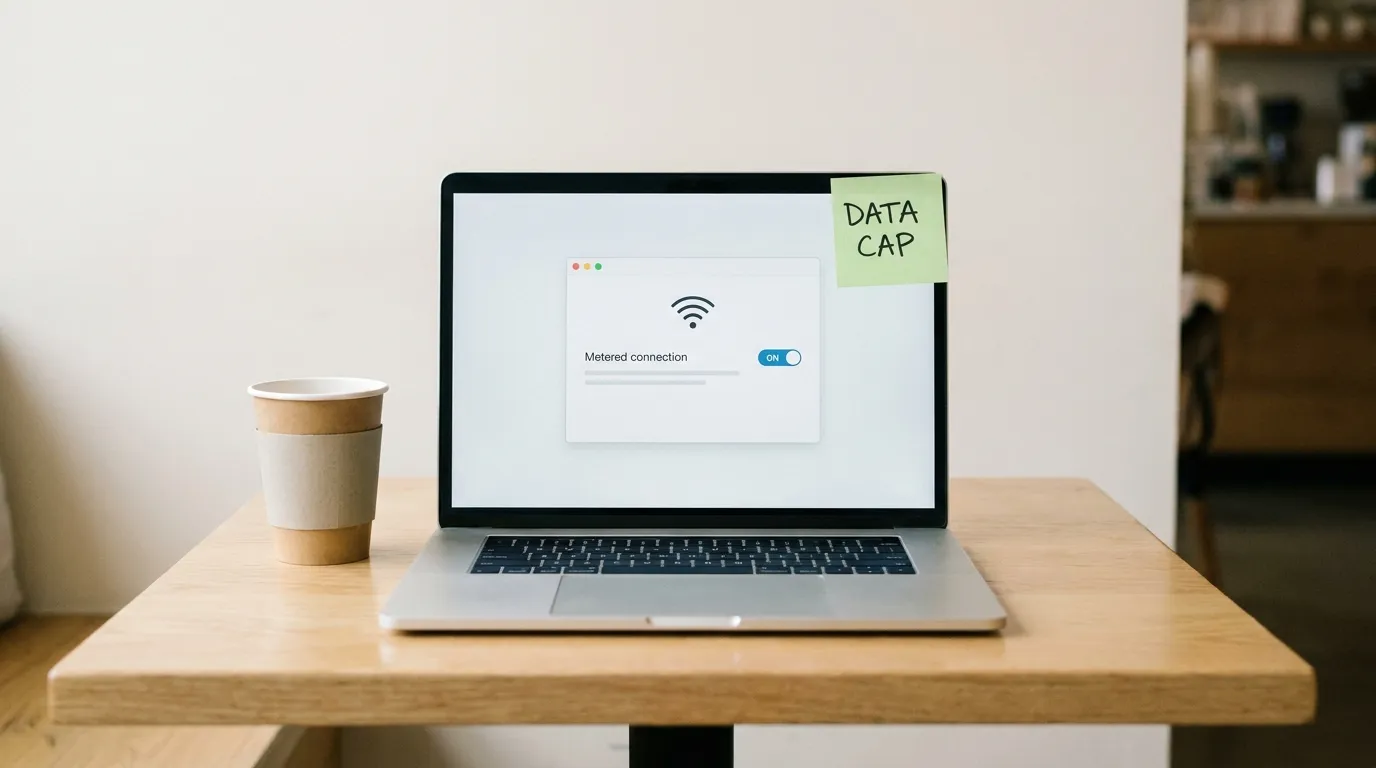
A metered connection tells Windows that data costs money on this network. Windows Update then holds back most downloads.
- Open Settings > Network & internet and select Wi-Fi (or Ethernet on a cable connection).
- Click the network you are connected to and turn on Metered connection.
- In Settings > Windows Update > Advanced options, make sure Download updates over metered connections is turned off.
The catch is that Microsoft designed this for saving data, so Windows still downloads updates it treats as required to keep the system running. It also only applies to that one network, so the moment you join your home Wi-Fi, updates start again. That makes it a good fit for a phone hotspot or a week on a capped connection, and a poor fit for anything long term.
Months, on your schedule: Group Policy (Pro only)
On Windows 11 Pro, Enterprise or Education, the Local Group Policy Editor gives you real control. Windows 11 Home does not include it.
- Press Win + R, type
gpedit.mscand press Enter. - Go to Computer Configuration > Administrative Templates > Windows Components > Windows Update > Manage end user experience.
- Double-click the Configure Automatic Updates policy on the right.
- Select Enabled and choose 2 – Notify for download and auto install. Click OK and restart the computer.
With option 2, Windows tells you when updates are available and waits for you to start the download. You keep security patches and decide when they land, which is a better trade than using the policy to turn off automatic updates completely. If you want them fully off, set it to Disabled. Windows then stops automatic Windows updates, and the Check for updates button still works for manual checks.
Home users can make the same change through the registry. Open the Registry Editor (regedit) and go to the following path: HKEY_LOCAL_MACHINE\SOFTWARE\Policies\Microsoft\Windows\WindowsUpdate\AU. If the WindowsUpdate key or the AU key is missing, right-click the parent key and create it as a new key. Then add a new DWORD (32-bit) value named NoAutoUpdate and set it to 1. Back up the registry first, and delete the value later to turn automatic updates back on.
Indefinitely: disable the Windows Update service
This is the blunt option most guides show first. It is also the least reliable.
- Press Win + R, type
services.mscand press Enter. - Scroll down, right-click the Windows Update entry and select Properties.
- Click Stop, set Startup type to Disabled and click OK.
Windows ships with the Windows Update Medic Service, whose job is to repair update components. In practice, users often find the service automatically set back to Manual after a while, especially once the PC is online. A disabled service can also interfere with Microsoft Store downloads and with Defender definitions delivered through Windows Update. And while it is off, your device gets no security fixes at all. Some guides go further and block Microsoft’s update servers in the Windows 11 hosts file or with firewall rules; those blocks are easy to forget and hard to trace later.
What turning off updates actually costs you
Disabling updates by any of these methods trades security for control. Monthly cumulative updates close security holes, and some of those holes are already being exploited by the time the patch ships. A few weeks of delay is a reasonable risk on a home computer. Months without updates on a laptop you use for banking or work is a different story.
Keep these points in mind before you disable automatic updates for good:
- Microsoft Defender gets its own definition updates, and some methods block those too.
- Driver updates arrive through Windows Update as well, so a new printer or graphics card on your device may not get its driver.
- Feature updates are separate from security updates. If you only want to avoid a big feature version jump, the pause or Group Policy steps handle that without disabling patches.
- When you resume, expect a large download and one or two restarts.
FAQ
How do I stop Windows Update permanently?
On Pro, set the Configure Automatic Updates policy to Disabled. On Home, use the NoAutoUpdate registry value. Disabling the service alone rarely stays permanent. None of these is a good long-term setup for a computer that goes online.
How long can you pause Windows 11 updates?
Up to 5 weeks (35 days). After that, Windows installs the pending updates before it lets you pause again.
Does a metered connection stop Windows updates?
Mostly. It holds back optional and most regular downloads on that network, but Windows can still download updates it considers required.
Is it safe to turn off Windows updates?
For a short time, yes. For months, no. Set a reminder to resume, and run updates before you travel or connect to public Wi-Fi.
Checklist before you stop Windows Update
- Decided how long you need updates off (days, weeks, months).
- Picked the lightest method that covers that window.
- Set Active hours if restarts were the real problem.
- Noted what you changed (policy, registry value, service) so you can undo it.
- Put a calendar reminder on the day you plan to turn updates back on.
Did this fix it?
0 readers say this fixed it
Good. One gripe fewer on the wall.
Sorry. Tell us what you tried, or see if others have the same problem.