- Computer Gripes
- Error code lookup
- 0xc1900101
Error 0xc1900101: Windows Upgrade Rolled Back (Fix)
Error 0xc1900101 means your Windows upgrade failed and rolled back, usually due to a driver. See what the suffix means and the fixes you can try first.
Error code 0xc1900101 means Windows setup hit a problem during the upgrade process, gave up, and put your old version back. Microsoft calls 0xc1900101 a generic rollback code. In most cases a device driver has caused it: the driver crashed, froze, or could not be moved to the new version of Windows. Your files and apps are normally still there, because this rollback returns your system to its state before the installation.
Where you see this update error
The error belongs to Windows setup, so you can see it anywhere setup runs:
- Windows Update, when a feature update (the yearly new Windows 11 version) failed during the installation
- The Windows 11 Installation Assistant, or setup.exe on an ISO file or USB stick
- An upgrade from Windows 10 to Windows 11, often after one or two restarts and a “Restoring your previous version of Windows” screen
It is not a Microsoft Defender or Microsoft Store problem. Regular monthly updates usually fail with other codes, and our guide to Windows Update errors covers those.
What the second number tells you
The error code often has a suffix, such as 0xC1900101 – 0x40017. That suffix shows the phase where the process broke. Microsoft documents these:
| Suffix | What went wrong | Likely cause |
|---|---|---|
| 0x2000c | Error during the image apply step in WinPE | Out-of-date drivers, file system errors |
| 0x20017 | Safe OS boot failure, a driver could not be migrated | Drivers, non-Microsoft encryption software, failing hardware |
| 0x30018 | A device driver stopped responding to setup | Driver for a connected device |
| 0x3000D | Failure during the first boot while migrating data | Display driver |
| 0x4000D | Rollback during the second boot | Incompatible driver or driver configuration |
| 0x40017 | Failure after the second restart | Filter drivers from antivirus or encryption tools |
Microsoft’s own upgrade error help page puts it simply: an error that begins with 0xC1900101 is usually a driver error.
How to fix 0xc1900101: troubleshooting steps for your update
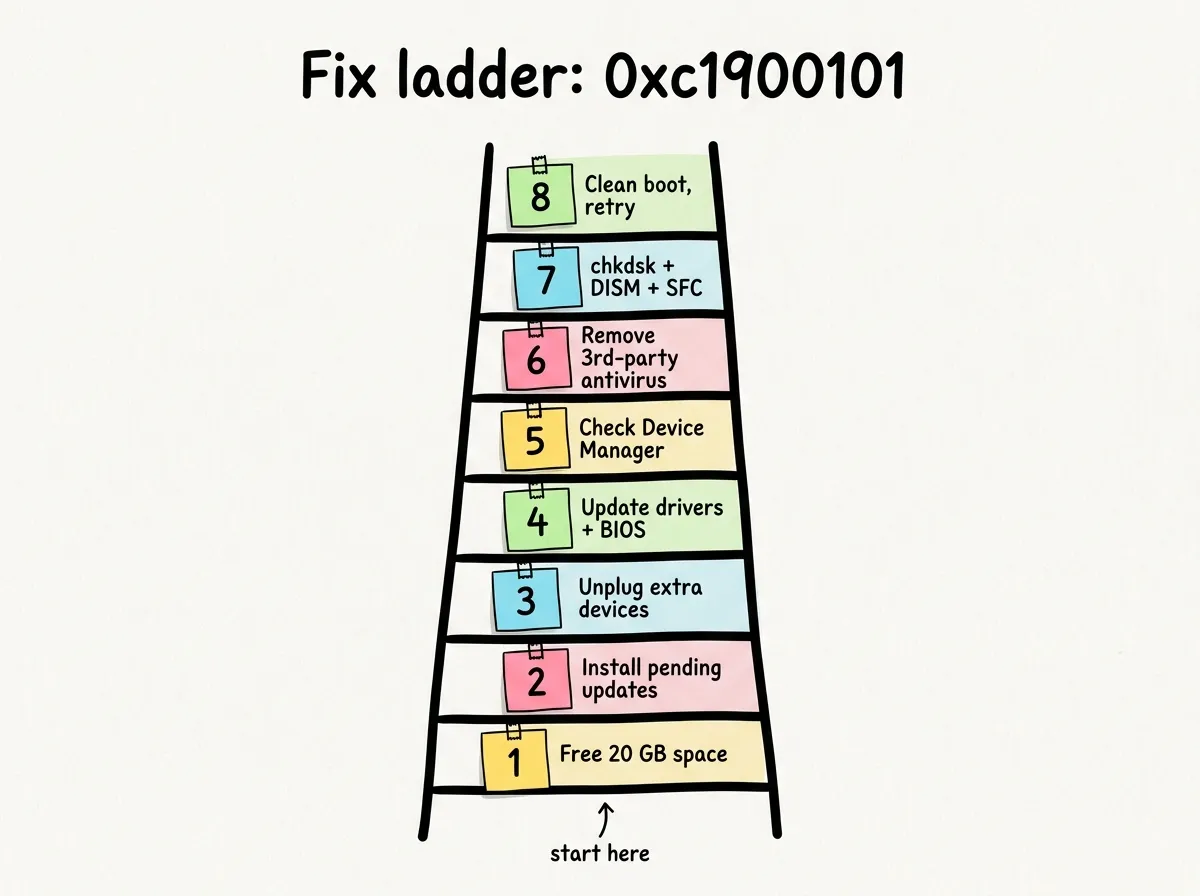
Work through the following steps in order and try the update again after each one. If Windows Update itself fails before setup starts, run the Windows Update troubleshooter under Settings > System > Troubleshoot.
- Free up disk space. Microsoft asks for at least 20 GB free for a 64-bit system (16 GB for 32-bit). Use Disk Cleanup or Settings > System > Storage.
- Install all pending updates. Click Check for updates, download and install all updates, restart, and repeat until nothing is left.
- Disconnect all peripheral devices except for the mouse, keyboard and display. That includes USB drives, docks and extra SATA drives on your computer.
- Get the latest device drivers and BIOS at the support site of your hardware vendor. Display, storage, Wi-Fi and audio drivers are the usual suspects.
- Check Device Manager for any device with a yellow exclamation mark, then update or uninstall the driver for that device.
- Uninstall third-party antivirus and encryption software for the upgrade. Microsoft Defender protects your computer meanwhile, and you can install that program again afterward.
- Repair the disk and system files. In an admin Command Prompt, run
chkdsk /f C:and restart, then runDISM.exe /Online /Cleanup-image /Restorehealthandsfc /scannow. - Do a clean boot with msconfig, so that setup starts with a minimal set of drivers and startup programs. If setup offers the option to download and install updates (recommended), accept it.
Still stuck? Microsoft’s free SetupDiag tool reads the log files of a failed upgrade and can often name the driver that has caused this problem. The rollback logs sit in the hidden folder C:\$Windows.~BT\Sources\Rollback.
What not to do when you have the error
- Don’t install a “driver updater” app. Make sure you download drivers on the device maker’s site.
- Don’t delete the $Windows.~BT folder by hand while setup is still working.
- Don’t switch off updates for good just to stop the retries. If you need a break, pause updates the safe way.
FAQ about 0xc1900101
Will I lose my files after error 0xc1900101?
Normally no. The rollback restores your previous version of Windows with all your files, apps and settings.
Is the error always a driver problem?
Not always, but most of the time. Microsoft also names low disk space, security software, disk errors and failing hardware. Check the suffix first, since that narrows down the cause.
Can I stay on Windows 10 instead?
Yes. Consumer Extended Security Updates for Windows 10 run until October 12, 2027. For other codes, see our error code library.
Did this fix it?
0 readers say this fixed it
Good. One gripe fewer on the wall.
Sorry. Tell us what you tried, or see if others have the same problem.