- Computer Gripes
- Error code lookup
- 0x80073701
Error 0x80073701: Windows Update Files Missing (Fix)
Error 0x80073701 means Windows can't find a component an update needs. See the causes and the fix order: DISM, the CBS log, then a manual package install.
Error 0x80073701 means Windows went to install an update or feature and couldn’t find a component it depends on. Microsoft’s name for it is ERROR_SXS_ASSEMBLY_MISSING. The installer looks in the component store (the WinSxS folder), the file isn’t there, and the installation stops. In most cases an earlier update for Windows didn’t finish cleanly and left this gap behind.
Where you see error 0x80073701
The number is the same everywhere, but the context changes which solution to try first:
- Windows Update on Windows 10 and 11: a cumulative update fails with “Install error – 0x80073701” on every retry.
- Windows Server: adding a role or feature such as IIS or .NET Framework 3.5 fails with “The request to add or remove features on the specified server failed.”
- Older systems: on Windows 7 and Server 2008 R2, service packs failed with error 0x80073701 too.
In 2019 Microsoft listed it as a known issue for some Windows 10 version 1903 updates, so a bad patch can trigger it even on a healthy PC.
Likely causes
| Cause | How you can tell |
|---|---|
| An earlier update installed only partly | The CBS log names the same KB package for every failure |
| Corrupted component store or system files | DISM reports the image as repairable |
| Broken Windows Update components | The same download fails each time |
| Unused language packs or leftover packages | Servicing stops on a package you never use |
How to fix error 0x80073701
Work through the following steps in order. Each one takes longer than the one before, so stop as soon as the installation goes through.
- Restart the PC. Then run the Windows Update troubleshooter (Settings > System > Troubleshoot > Other troubleshooters) and try again.
- Press the Windows key, type cmd, right-click Command Prompt and choose Run as administrator. Type the command
DISM /Online /Cleanup-Image /RestoreHealthand press Enter. When it finishes, runsfc /scannowto check your system files, reboot, and try the update again. - Reset the Windows Update components: run
net stop wuauservandnet stop bits, rename C:\Windows\SoftwareDistribution to SoftwareDistribution.old, then runnet start wuauservandnet start bits. - Check the log: open C:\Windows\Logs\CBS\CBS.log in Notepad and search for 0x80073701. The lines around any match name the package (a KB number) the installer found broken.
- Download that package for your Windows version from the Microsoft Update Catalog and install the update by hand. If it already shows under installed updates, uninstall it, reboot, and install it again.
- If DISM can’t resolve the damage on its own, mount a Windows ISO of the same version and run
DISM /Online /Cleanup-Image /RestoreHealth /Source:WIM:D:\sources\install.wim:1 /LimitAccess(swap in your drive letter and image index). - Last resort on Windows 11: Settings > System > Recovery > “Fix problems using Windows Update” reinstalls your current version and keeps your apps, files and settings.
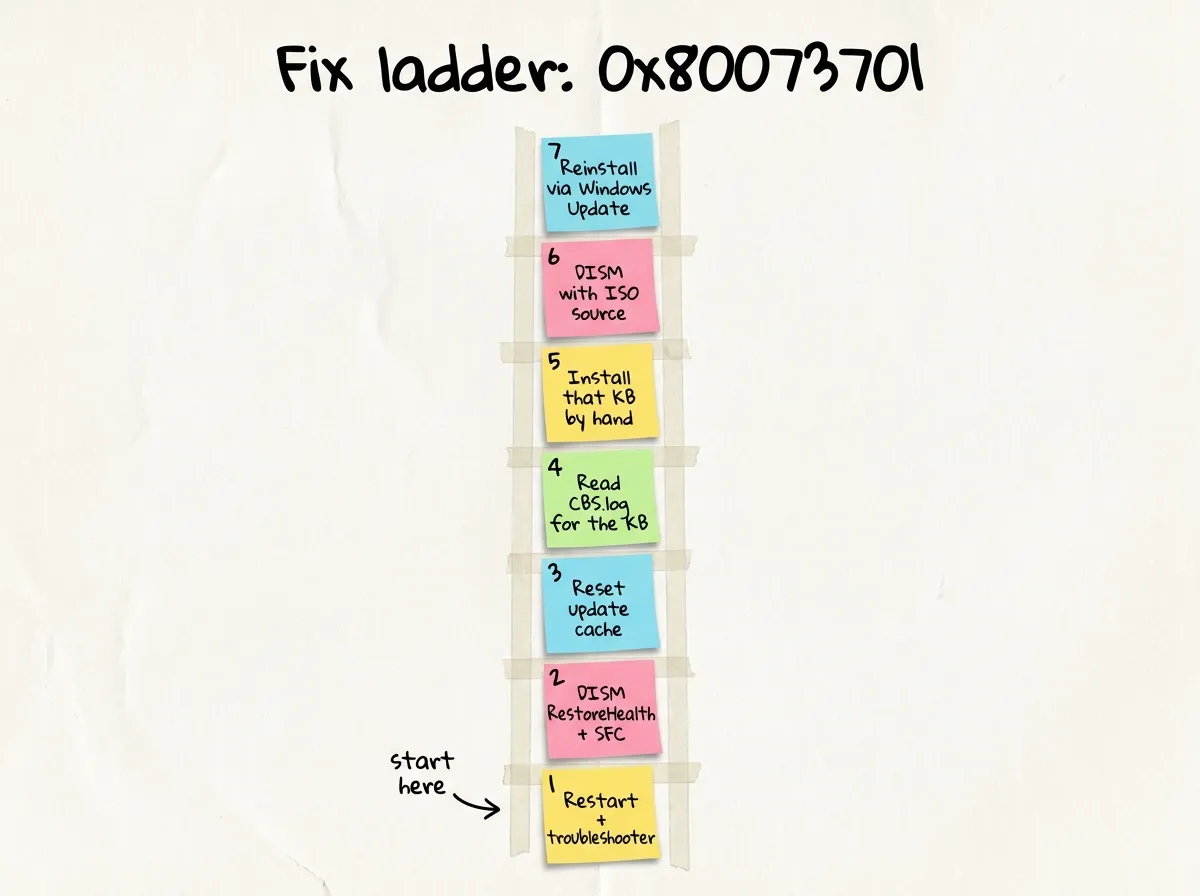
About step 2: Deployment Image Servicing and Management (DISM) helps when the store itself is corrupted. When one package’s files are gone, IBM’s support note on this error says DISM and SFC almost never fix it, which is why steps 4 and 5 exist. Microsoft’s guide to repairing a Windows image with Deployment Image Servicing and Management explains /Source and /LimitAccess if you get to step 6.
If DISM itself fails with 0x800f081f, it couldn’t find repair files. That one has its own 0x800f081f fix.
What not to do
- Don’t delete the WinSxS folder or let a cleaner tool “slim” it. You will turn one installation failure into many.
- Skip forum registry scripts that change package states. They can break later updates.
- Don’t click Retry for days. The same gap fails the same way every time.
For other update failures, our Windows Update troubleshooting guide has nine general fixes, and the error code library covers the neighbors of this one.
FAQ
What does error 0x80073701 mean?
Windows tried to install an update or feature, and a component it depends on is absent from the component store.
Does DISM fix 0x80073701?
Sometimes. It works when the store is corrupted. If the CBS log points to one KB package, reinstalling that package by hand usually works better.
Will I lose files fixing it?
None of these steps deletes personal files, and “Fix problems using Windows Update” keeps apps and data. Back up anyway before step 7.
Did this fix it?
0 readers say this fixed it
Good. One gripe fewer on the wall.
Sorry. Tell us what you tried, or see if others have the same problem.