- Computer Gripes
- Error code lookup
- 0x800f081f
Error 0x800f081f: Source Files Not Found (Fix)
Error 0x800f081f means Windows can't find the files it needs for .NET Framework 3.5, a DISM repair or an update. Here's how to fix it, easiest step first.
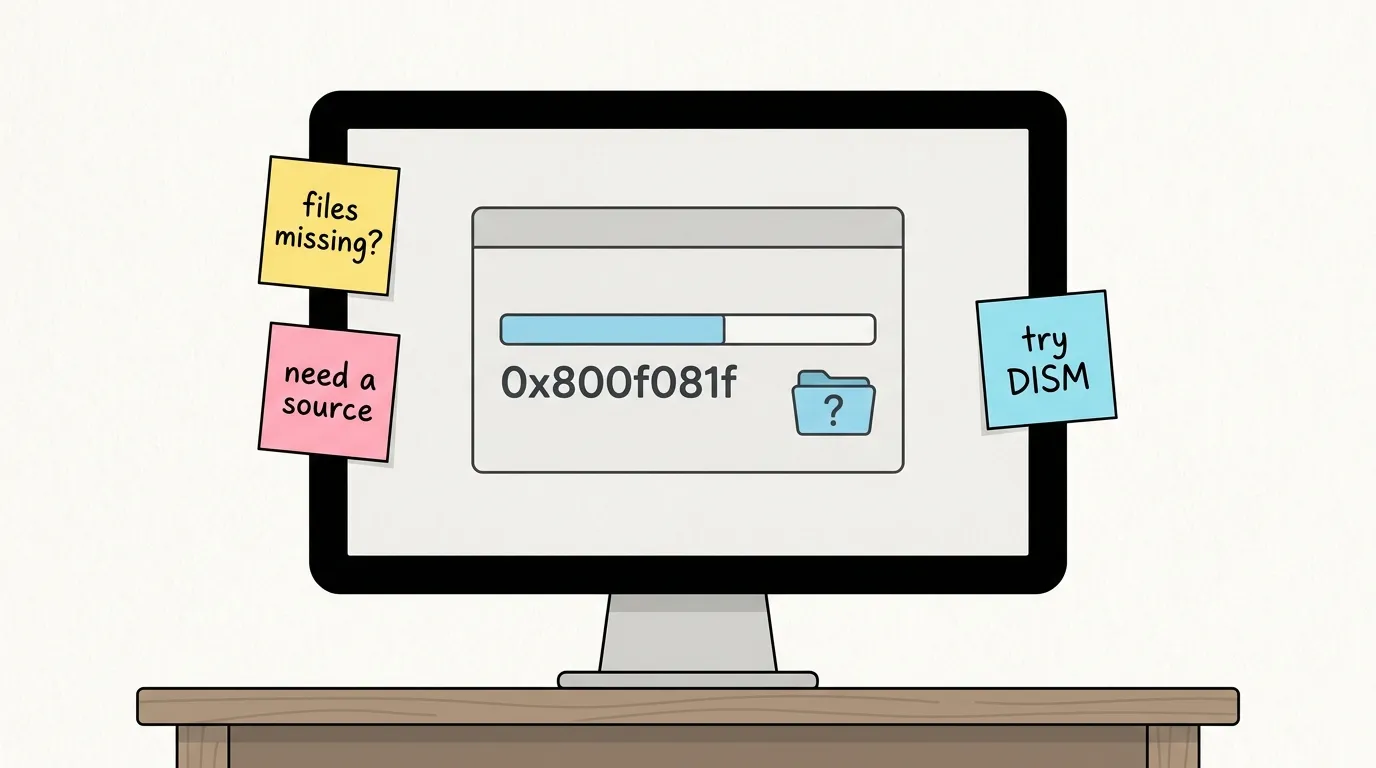
Error 0x800f081f means Windows went looking for the files it needs to add a feature or repair itself, and came back empty-handed. Microsoft’s internal name for this error is CBS_E_SOURCE_MISSING: “the source files could not be found.” In most cases you can fix it by giving your computer a working place to get those files: Windows Update, or installation media that matches your version.
Where the 0x800f081f error shows up
You’ll usually meet the code in one of three places:
- .NET Framework 3.5. You turn it on in Windows Features, or an older app asks for it.
- DISM. A repair with
/RestoreHealthor a feature install stops because the tool has no usable copy of the files. - Windows Update. A cumulative update fails because files in the component store are missing or corrupted.
What usually causes it
| Cause | Typical context | Go to step |
|---|---|---|
| No connection to Windows Update, or the update service is stuck | .NET 3.5, updates | 1 |
| Corrupted system files | Updates, DISM | 2 |
| A work PC gets updates through WSUS, which doesn’t serve these files | .NET 3.5, DISM | 4 |
| The repair path is wrong or points at a different Windows version | DISM | 5 |
| The installation itself is damaged | Updates | 6 |
How to fix error 0x800f081f, step by step
You need an administrator account. Work down the steps and stop as soon as the feature or update installs.
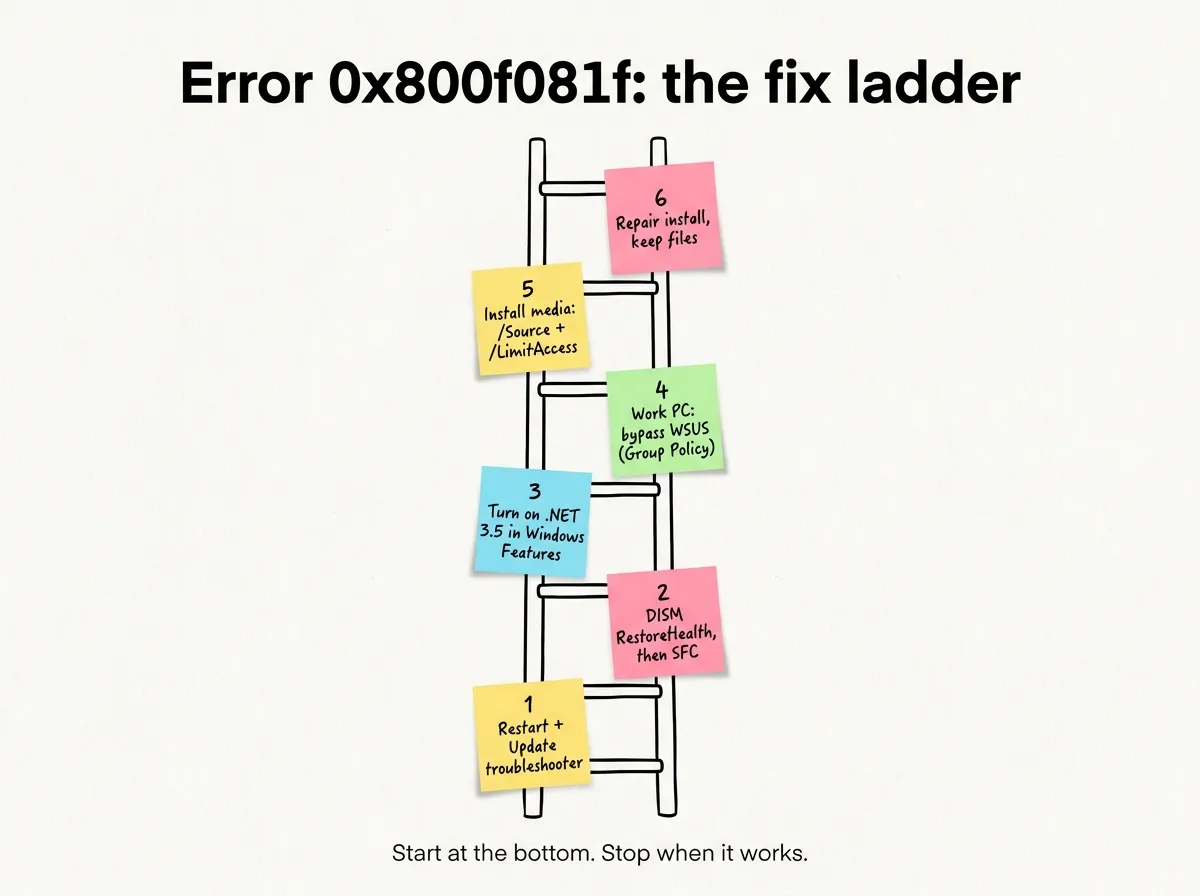
- Restart and run the Windows Update troubleshooter. Turn off any VPN and restart. On Windows 11, open Settings > System > Troubleshoot > Other troubleshooters and select Run next to Windows Update. On Windows 10 the same tool sits under Update & Security > Troubleshoot. Then try again.
- Repair corrupted system files. Press the Windows key, type cmd, then right-click Command Prompt and select Run as administrator. Type the following command and press Enter:
DISM /Online /Cleanup-Image /RestoreHealth. When it finishes, runsfc /scannow. Run DISM first, because SFC relies on the store it fixes. - Turn on .NET Framework 3.5 in Windows Features. Search the Start menu for Turn Windows features on or off, tick .NET Framework 3.5 (includes .NET 2.0 and 3.0) and click OK. Your computer downloads the files, so stay online.
- On a work PC, let it bypass WSUS. Open the Group Policy Editor (Pro and higher), go to Computer Configuration > Administrative Templates > System and enable Specify settings for optional component installation and component repair. Tick the option to get repair content directly from Windows Update instead of WSUS. If IT manages the PC, ask them first.
- Use the installation media. Download the ISO for the same version and language as your Windows, double-click it to mount it and note the drive letter (D: here). In an admin Command Prompt, run
DISM /Online /Enable-Feature /FeatureName:NetFx3 /All /Source:D:\sources\sxs /LimitAccess. LimitAccess stops the tool from trying the internet again. On Windows 11 26H1 and later this fails as well, because .NET Framework 3.5 is no longer a Windows feature there. - Do a repair install if updates keep failing. On Windows 11, open Settings > System > Recovery and select Reinstall now next to Fix problems using Windows Update. You can also run setup.exe from the mounted ISO and keep your files and apps. Back up first either way.
Microsoft’s own table of .NET Framework 3.5 deployment errors lists 0x800f081f next to two close relatives: 0x800f0906 (the download failed) and 0x800f0907 (blocked by a policy). Other codes are covered in our guide to fixing Windows Update errors.
What not to do
- Don’t mix versions. Microsoft warns that media from another Windows release can install a mismatched .NET 3.5 or fail outright.
- Don’t download “missing DLL” packs or repair tools from random sites. They can’t rebuild the component store, and some bundle unwanted software.
- Don’t switch Windows Update off for good. The next update will fail the same way.
FAQ
Is 0x800f081f a virus?
No. It’s a status message from the Windows servicing stack that says a file source is missing. Malware isn’t the usual cause of this error.
Why does DISM RestoreHealth fail with 0x800f081f?
DISM couldn’t reach Windows Update or found no matching copy of the files. Fix the connection (step 1) or point it at media that matches your version (step 5). Error 0x80070002 is a similar “file missing” problem inside Windows Update itself.
Why won’t .NET Framework 3.5 install on a new Windows 11 PC?
Starting with Windows 11 26H1 (build 28000), Microsoft no longer ships .NET Framework 3.5 as a Windows feature, so steps 3 and 5 can’t work there. You install it with a standalone installer from Microsoft instead. More codes are in our error code library.
Did this fix it?
0 readers say this fixed it
Good. One gripe fewer on the wall.
Sorry. Tell us what you tried, or see if others have the same problem.